Payment processors and webhooks
This page is for whoever runs the server and sets up card payments with the town's administrator. Chiban takes card payments through a processor the town already has an account with. Staff and applicants never see card numbers: the processor takes them. Chiban records what the processor reports.
What is supported
The processor form offers three choices.
| Choice | What it is | State |
|---|---|---|
| Stripe | Online checkout and a counter card reader. | No practice notice is shown on screen. The README says no live processor key is configured anywhere in the repository and that Stripe is exercised against stripe-mock, a stand-in that answers with fixed responses. |
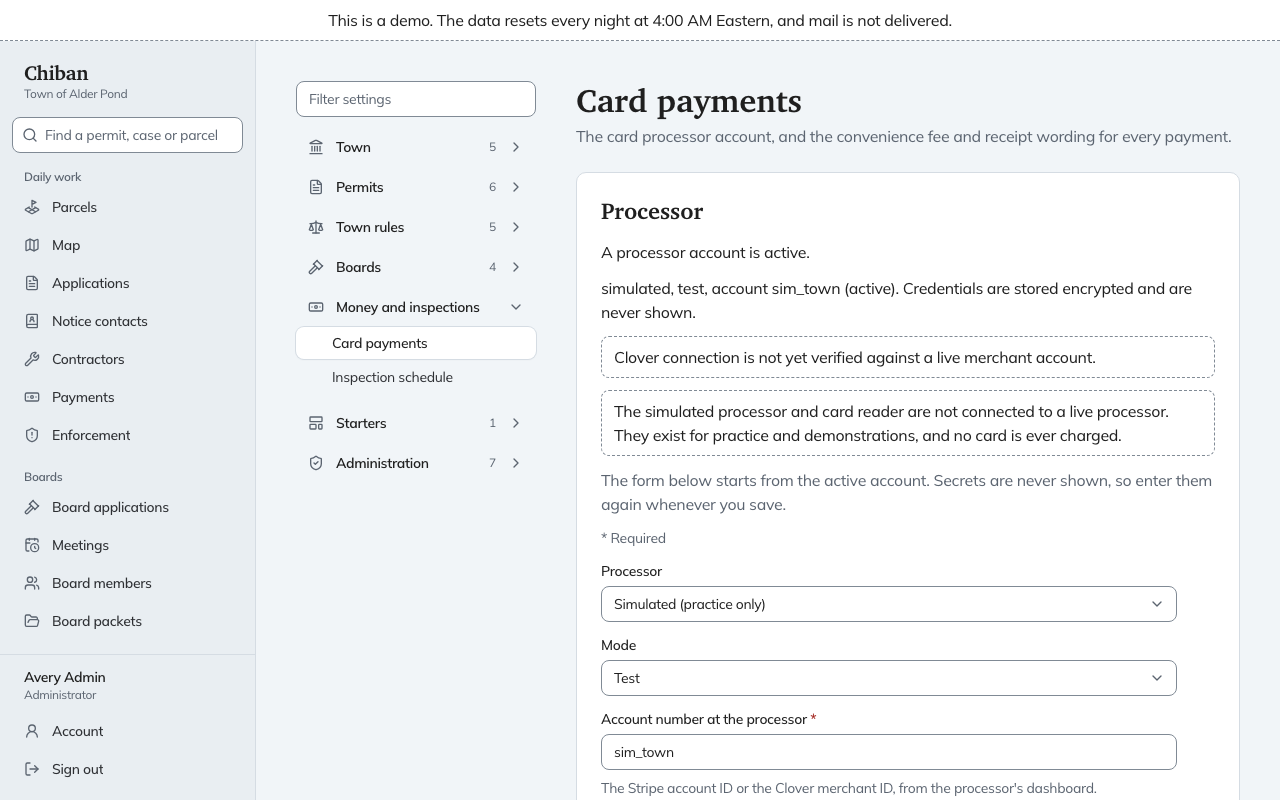
| Clover | Online checkout and a counter card reader. | The settings page says "Clover connection is not yet verified against a live merchant account." Treat it as untested with real money. |
| Simulated (practice only) | A fake processor for demonstrations. No card is ever charged. | Available only when ENABLE_SIMULATED_PAYMENTS is true. |
Cash and check payments need no processor.
Saving the processor account
An administrator opens Settings, Money and inspections, Card payments and fills in the Processor section. The page needs the permission to edit configuration.
| Field | What goes in it |
|---|---|
| Processor | Stripe, Clover or Simulated. |
| Mode | Test or Live. |
| Account number at the processor | The Stripe account ID or the Clover merchant ID. |
| Secret key | Stripe's secret key, or Clover's private token. |
| Webhook signing secret | The secret the processor gives you for the webhook endpoint. Required. |
| Advanced | Clover API address, Clover checkout address, and the card reader device ID. |
The secret key and the signing secret are encrypted with the active key in CHIBAN_SECRET_KEYS and are never shown again, so the form asks for them again every time. If the keys are lost, the saved credentials cannot be read and the page reports "Processor credentials cannot be read."
Saving never edits an account. It adds a new account record with a new id, makes it the active one and deactivates the earlier one, and writes an audit entry. The earlier records stay in the database.
The webhook endpoint
The processor tells Chiban about payments by calling:
POST https://town.example.org/api/payments/webhooks/<account id>
The id at the end is the id of the saved account record. The settings page does not show it. Read it from the database:
docker compose exec postgres psql -U chiban -d chiban -c "select id, processor, mode, account_ref, is_active from processor_accounts order by created_at desc"
Because every save creates a new record, saving the form again gives you a new id and so a new endpoint address, and the signing secret you entered goes with that record. Register the new address with the processor each time. The address of an earlier record keeps working, with its own secret, for payments that began under it.
The path is skipped by the application's CSRF cookie handling, and the bundled Caddyfile sends it to the application like every other path. The processor must be able to reach it over HTTPS on the public name.
What the endpoint answers
| Status | Body | Meaning |
|---|---|---|
| 200 | {"received":true} | The event was accepted. A repeat of an event already processed adds "duplicate":true. |
| 400 | {"error":"bad_signature"} or {"error":"malformed"} | The signature did not match the account's signing secret, was missing or too old, or the body could not be read. |
| 404 | {"error":"unknown_account"} | The last part of the address is not an id Chiban knows. |
| 500 | {"error":"processing_failed"} | Chiban could not look up or reconcile the payment. The processor should retry. |
| 503 | {"error":"credentials_unreadable"} | The account's saved secrets cannot be decrypted. Check CHIBAN_SECRET_KEYS. |
Stripe's signature is read from the Stripe-Signature header and Clover's from Clover-Signature. Both are rejected when their timestamp is more than 300 seconds from the server's clock, so keep the host's clock synchronized.
What Chiban does with an event
Chiban takes neither the amount nor the outcome from the body of an event. It stores the event (once per account and event id), finds the payment attempt it refers to, asks the processor for that payment's current state, and reconciles the attempt to what the processor says. An event for another Stripe account, or one whose live or test flag does not match the saved account's mode, is stored and ignored. So is an event for a payment Chiban has no record of. The outcome is kept with the event as reconciled, foreign_object, no_attempt or error. An event that ended in error is answered with 500 and stays unprocessed so the processor's retry can finish it.
For Stripe, the code reads events whose type begins with checkout.session. or payment_intent., and any other event whose object carries a payment_intent field, such as a charge or a refund. Other event types are stored and answered with 200 without changing a payment.
When a webhook never arrives
Webhooks are not the only way Chiban learns of a payment. The worker's payment reconciliation job runs every hour. It looks at every attempt that is authorized or captured, and every pending attempt that is marked outcome unknown or has not changed for 10 minutes, asks the processor for its state and reconciles it. A town that cannot expose the endpoint still gets correct payments, an hour late at worst, as long as the worker runs. The job records the last check and its error on each attempt.
Demo mode and development
When CHIBAN_DEMO_MODE is on, only the simulated processor may be saved. If any other processor is already in the database, the application and the worker refuse to start and log [demo] refusing to start: CHIBAN_DEMO_MODE is on and a payment processor other than the simulator is configured.
STRIPE_API_BASE points the Stripe adapter at another address, such as a local stripe-mock. The application refuses to start when it is set and NODE_ENV is production, which the application image sets. stripe-mock sends no webhooks.
Settings that do not reach the bundled Compose services
deploy/docker-compose.yml passes neither ENABLE_SIMULATED_PAYMENTS nor STRIPE_API_BASE to any service. On the bundled deployment the simulated processor therefore cannot be saved, and a Stripe or Clover account is the only choice. To allow the simulated processor, add ENABLE_SIMULATED_PAYMENTS: "true" to the shared environment block at the top of the Compose file. Do not do this on a town's real installation: the simulated processor records payments that took no money.
The configuration reference lists these settings in full.
The settings page