Signing in, your account and claim links
You do not need to sign in to look up a parcel, read meeting notices or report a problem. You sign in to apply for a permit, follow an application, pay a fee or ask for an inspection. There is no password. The town sends a link to your email, and the link signs you in.
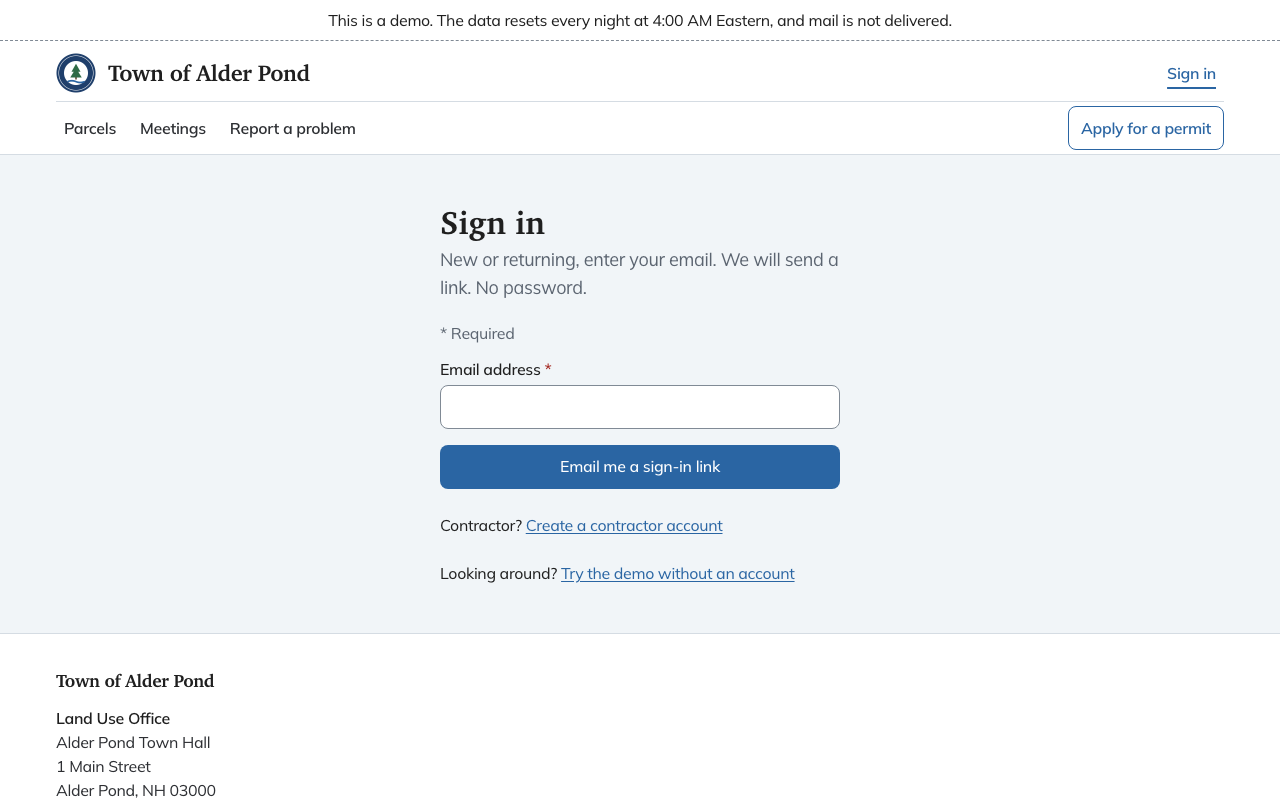
Signing in
- Choose Sign in at the top of any page, or start an application and Chiban sends you here.
- Enter your email address and choose Email me a sign-in link. New and returning people use the same page. An address Chiban has not seen before gets a new account.
- Open the email on the same device and follow the link. The page asks you to confirm with Continue as followed by your address. Choose it and you are in.
The link works once and expires after 15 minutes. If it does not arrive, choose Send again on the "Check your email" screen, or Use a different email if you typed the wrong address. The page never says whether an address is known, so a typo looks the same as a success. If you open an old or used link, you see "That link is no longer valid" and can ask for a new one.
If you are already signed in as someone else, the confirmation page warns you that continuing switches accounts.
To sign out, choose Sign out at the top of the page.
Your account page
Account in the top menu opens your account page. For most residents it holds your name, phone and mailing address. Chiban uses your name and phone to fill in the contact details when you request an inspection. Your email address is the one you signed in with and cannot be changed there. To use another address, sign in with that one.
Contractors see a contractor profile on the same page. See contractors and the contractor page.
When the town emails you a claim link
Staff sometimes enter an application or a project for you, for example when you filed on paper at the counter or when a property owner names you as the contractor. The town can then email you a link to Claim your project. The email says you were named as the applicant, or as a contractor, on a project.
- Open the link. The page shows the project, the address and the email address the link was sent to.
- Choose Sign in to claim and sign in with that same address. If you are already signed in, you see Claim this project instead.
- Choose Claim this project. Chiban takes you to the application, or to your contractor projects, where you can follow it like any other.
A claim link works once and expires after 14 days. If you sign in with a different address from the one the link was sent to, Chiban refuses with a message saying so. Sign in with the address that received the email. A link that has expired or was already used shows "This link has expired or was already used", with the office's phone and email so you can ask for a new one.