Applying online
You apply from the town's site in three steps: find the property, choose the kind of application, then fill it in and send it. You need to be signed in. If you are not, Chiban asks you to sign in first and brings you back.
Start from Apply for a permit at the top of any page, or Start an application on your Your applications page.
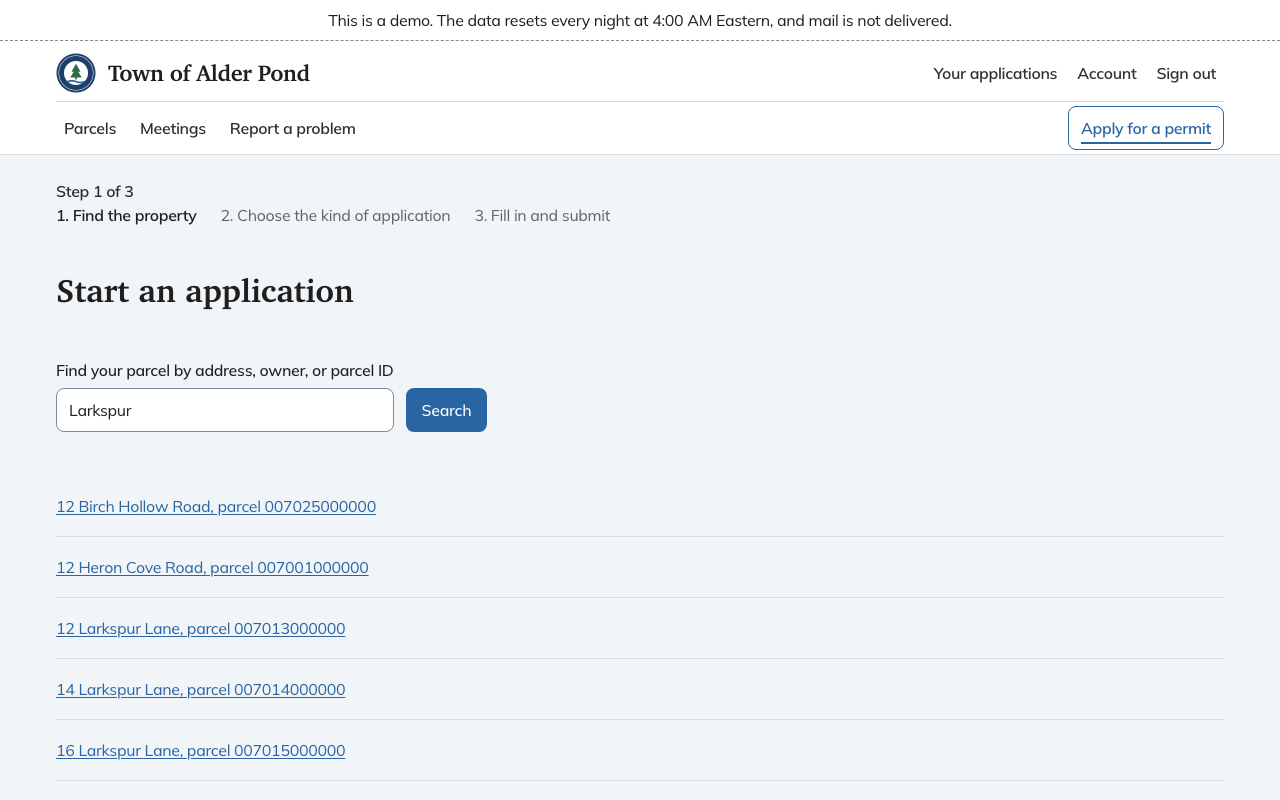
Step 1: find the property
Enter an address, an owner name or a parcel ID and choose Search. Pick your property from the list. Each result shows the street address and the parcel ID. If the property is not listed, call the land use office. The home page shows the office's phone number and hours.
Step 2: choose the kind of application
The page asks What is the work? with plain choices such as Build, add on or tear down, Electrical work, Plumbing, Gas or heating equipment, Driveway and Sign. Each has a line under it saying what it covers.
If your work is not on that list, the page below it says Something else? Choose who decides it. and lists the Building office, Planning Board, Zoning Board and Registrations and other, each with the number of application types it holds. Pick the one that decides your request, then choose Continue.
If you are not sure which one fits, the page shows the land use office's phone number. A property that has been retired, for example after it was merged or subdivided, cannot take a new application. The page tells you so, and you can Choose a different parcel.
Step 3: fill in the application
Chiban makes a draft and opens it. Nothing goes to the town until you send it, so you can leave and come back from Your applications, where it sits under Needs you marked Draft.
The draft has three parts.
- Application. The questions for this kind of work. A star marks the required ones. Some questions only appear when an earlier answer makes them matter.
- Documents. What the town needs with the application, such as a plot plan. Each item shows whether it is Missing, and some are marked Optional. Items that do not apply to your project are tucked under "Not needed for this project". Choose Choose file or drag a file in. Files can be PDF, JPEG or PNG. Other documents takes anything else you want the town to have.
- Confirmation. A statement that the information is true and complete, which you tick before sending.
Choose Save draft to keep what you have so far. Choose Submit application when you are done. If a required answer is empty, Chiban lists what is left and does not send it. Above the Submit application button it also names any document still missing, with a link to Go to documents.
The page's Do this now box at the top tells you the next thing, for example "Add the missing documents", with a link straight to it.
After you send it
The application moves from Draft to Submitted and the town sees it. Following your application explains what you see from then on.
Changing your mind
- Delete this draft appears on a draft you never sent. It leaves your list and cannot be brought back. The town keeps a note that the draft was withdrawn.
- Withdraw this application appears while the application is Submitted or Under review. The town stops its review and the application stays on file as withdrawn. To go ahead later you start a new one. Chiban asks you to confirm because it cannot be undone.
Once the town has decided, you cannot withdraw. Call the office.