Contractors and the contractor page
The town does not register or license contractors and charges no fee. A contractor account gives you one page that lists every project naming you as the contractor, and what each one needs from you.
Creating an account
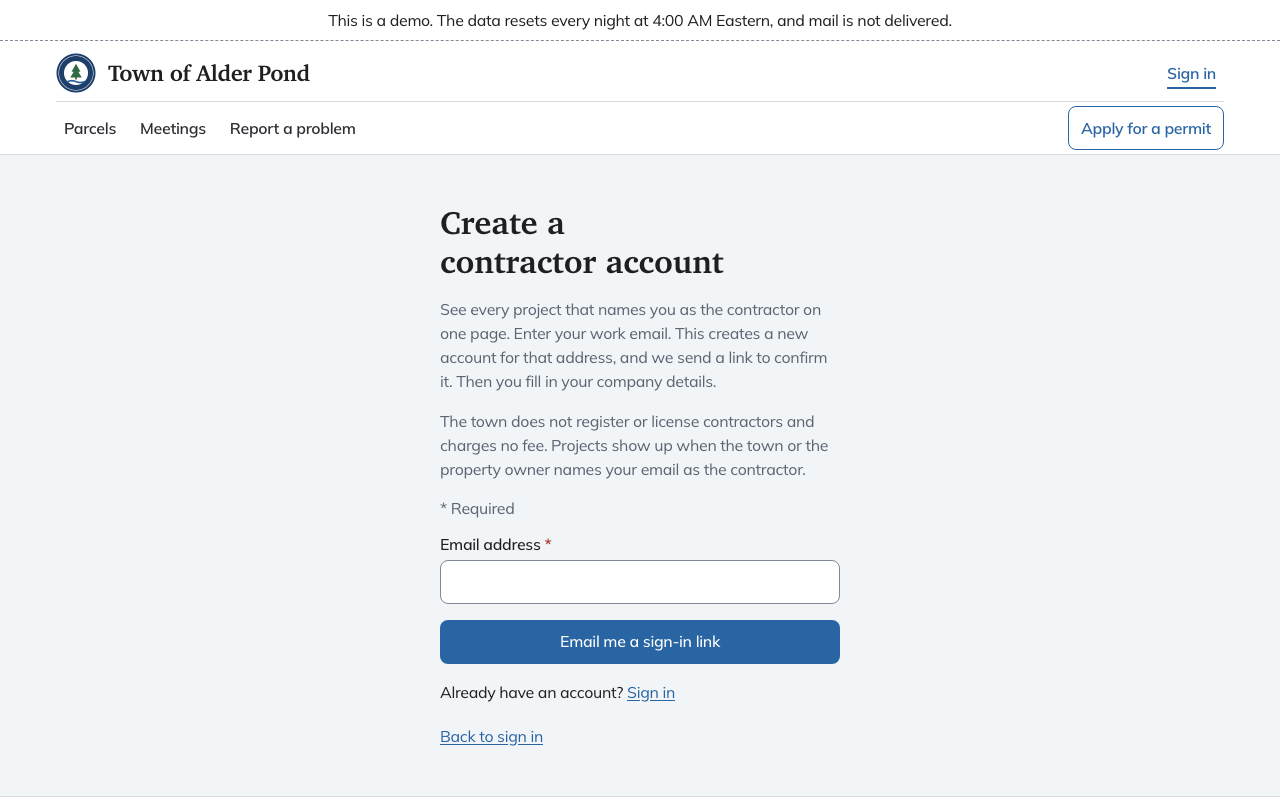
- Open Sign in and choose Create a contractor account.
- Enter your work email and choose Email me a sign-in link. This creates a new account for that address.
- Open the link within 15 minutes. It signs you in and takes you to your contractor details.
- Fill in the profile and choose Set up the contractor profile.
The profile asks for Company name, Contact name, Phone (required), a Mailing address, and the Trades you work in: Electrical, Plumbing, Fuel gas fitting and Oil heating. Leave the trades clear if you do general building work. The town uses the profile to reach you about your permits and checks state licenses when a trade permit is pulled.
If you already have an account as an applicant, open Account and choose Set up a contractor profile. The same email serves both.
Which projects show up
A project shows on your page when the town, or the property owner applying online, names your email address as the contractor. If the page says no projects name your address yet, give the town the email you signed in with, and the project appears once the town records it. You can also Start an application yourself from the page.
When the town names you on something it entered, it can email you a claim link. See signing in and claim links.
The contractor page
Open Contractor projects from the menu.
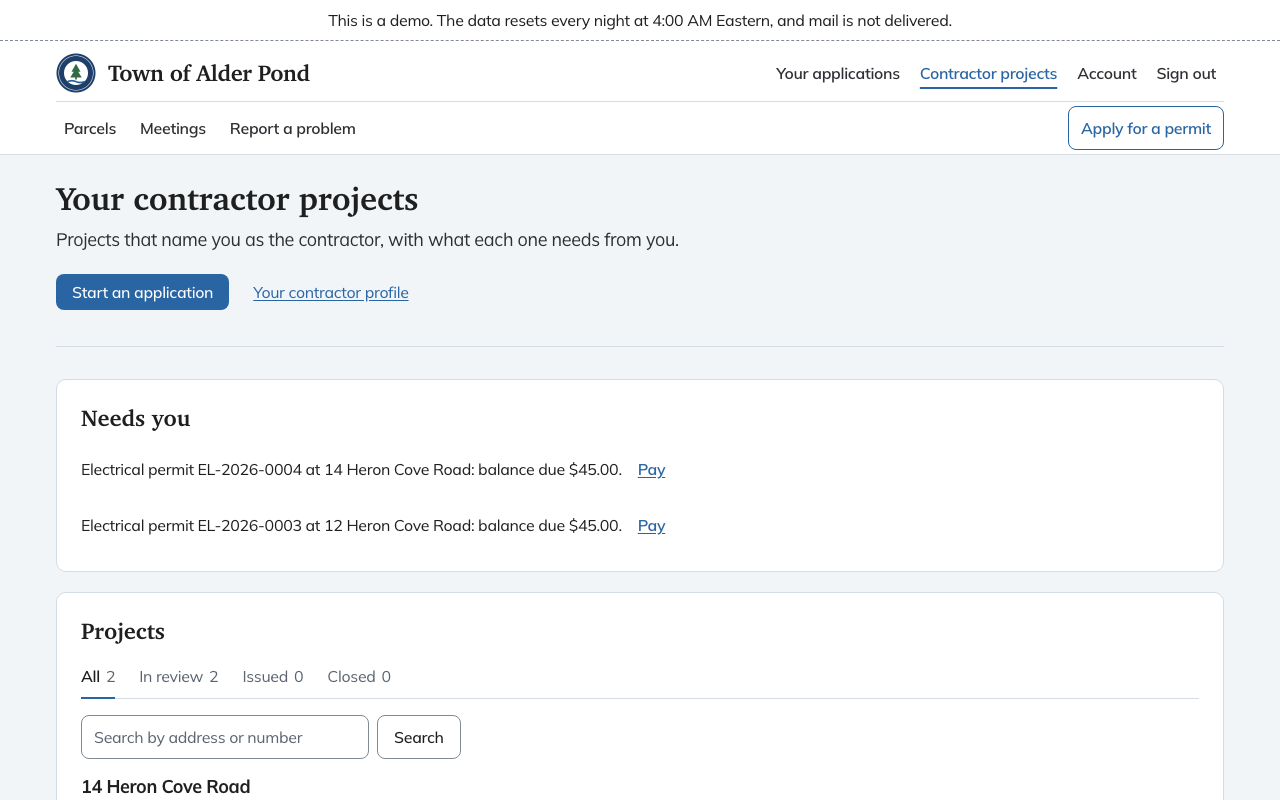
- Needs you is a short list of things waiting on you, each with a link to act: a balance due, documents the town asked for, an upcoming inspection, or an inspection with no result recorded. It shows six and folds the rest under Show all.
- Projects lists each project by address, with the parcel. Under it, each application shows its type and number, a status, and as much of the following as applies: Balance due, how many documents are requested, the next inspection, or the date it was issued.
- The status tabs All, In review, Issued and Closed narrow the list, and Search finds a project by address or number. Long lists page 25 at a time.
Choose an application to open it. A contractor can pay, add documents and request inspections on a project they are named on, the same way the applicant can. Withdrawing an application is the exception: only the applicant, owner or agent sees that option. See following your application and inspections.