Asking for and following inspections
Once a permit is issued, its application page has an Inspections section with Request or review inspections. A Do this now box offers Request an inspection when the work may be ready for one. Applicants and the contractors named on the project can both use it.
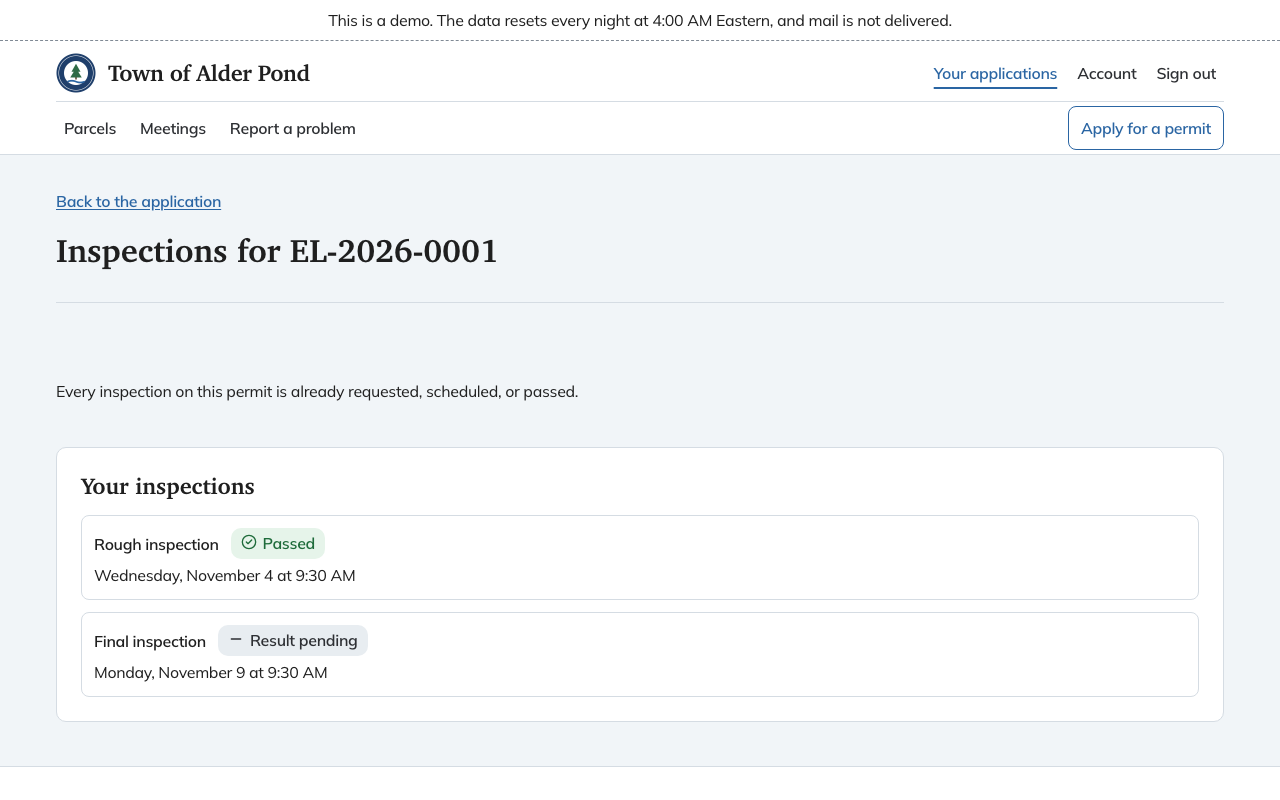
Your inspections
The page lists every inspection on the permit, such as Rough inspection or Final inspection, with a status:
- Requested: you asked, and the town has not booked a time.
- Scheduled: a day and time are set. The page shows them, for example "Monday, November 9 at 9:30 AM".
- Result pending: the booked day has passed and the inspector has not recorded a result yet.
- Passed or Failed. The inspector's notes show under the result.
- Cancelled.
Requesting one
Under Request an inspection, fill in the form and choose Request inspection.
- Inspection. Pick which one. Only inspections that are not already requested, booked or passed are offered. When every inspection on the permit is already in progress or passed, the page says so.
- Preferred day. A weekday, or No preference. It is a request, and the office books the actual time.
- Contact name and Contact phone. Whoever should meet the inspector. They start filled in from your account.
- Access notes. Anything the inspector needs to know to get in, such as a gate code or a dog.
Changing a request
While an inspection you requested online is Requested or Scheduled, Cancel this request takes it back. Chiban asks you to confirm. You can request a new one afterwards. A request that staff entered for you at the counter or by phone cannot be cancelled here. Call the office.
After a failed inspection
A Failed inspection shows Request a reinspection. It opens the same form for that inspection only.
When requests are not available
- "Online requests are turned off" followed by the office's phone and hours means the town takes inspection requests by phone only.
- "Inspections are paused while this permit is under appeal" means no request can be made until the appeal ends.