The Data export page
The Data export page produces one file with every record Chiban holds and every stored document, in open formats that open without Chiban. Use it for the town's own archive, when handing records to another system, or to answer "can we get our data out?" with a file instead of a promise.
Administrators and records custodians can open it, under Settings, then Administration, as Data export.
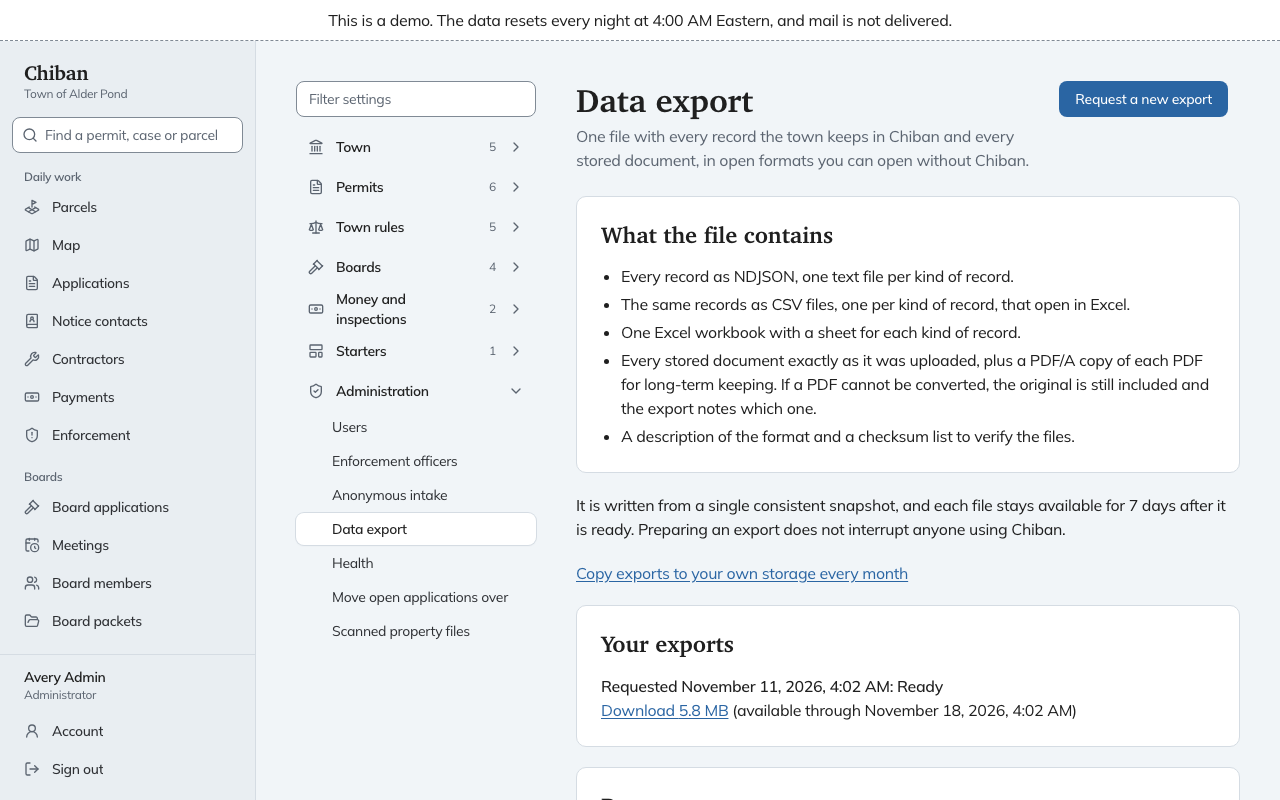
Requesting an export
Choose Request a new export. It joins the list under Your exports with the time you asked and a status.
- Waiting to start, then Being prepared. Preparing an export does not interrupt anyone using Chiban. Come back later and the page shows the new status.
- Ready. A Download link shows the size, for example 5.8 MB, and the date and time the file stays available through. Each file is kept for 7 days, and then its status becomes Expired. Request another if you need it later.
- Failed. "It did not finish. Request another."
What is in the file
The page lists it under What the file contains:
- Every record as plain text, one file for each kind of record.
- The same records as CSV files that open in Excel, and one Excel workbook with a sheet for each kind of record.
- Every stored document exactly as it was uploaded, plus a PDF/A copy of each PDF for long-term keeping. A PDF that cannot be converted is still included as it was, and the export notes which one.
- A description of the format and a checksum list to check the files have not been damaged.
Passwords, authenticator secrets, payment processor keys and sign-in links are never in an export. The export archive format page describes every file and field, for whoever opens the archive on the other end.
Copies to storage the town controls
Administrators also see Copy exports to your own storage every month. It opens the page where Chiban is told to copy changes each month to a folder, bucket or drive the town owns. Monthly export to storage the town controls covers setting it up. A target's page also lists each target with its day of the month, whether it is On, and the buttons Edit, Run now and Turn off.
The recovery export
Administrators also see a Recovery export section. It differs from the export above. It holds the whole database and the keys that unlock the saved secrets, encrypted with a passphrase you choose. To get it you give your password, your Authenticator code and a Passphrase for the file of at least 16 characters, then choose Download recovery export. The file goes straight to your computer and is not kept anywhere else. Without the passphrase it cannot be opened, so keep it somewhere safe and separate.
What you cannot do from here
There is no page in Chiban for putting an export back. You cannot upload an export file and rebuild a town from it, and nothing rebuilds a town from the monthly copies.
Whoever runs the server has two tools outside the screens. A command can load a full export file into a new Chiban that holds no records yet, and it refuses a Chiban that already has some. The recovery export is opened with the server's recovery tool. For restoring a town that has failed, use the encrypted backups described in self-hosting.
When the service closes
If the town stops using Chiban, the page says "This service is no longer active" with the date through which records can still be exported. After that date it says "The export window has ended. Contact the operator to arrange a copy."