Emailing reports on a schedule
If the same people ask for the same report every month, schedule it once and Chiban emails it to them. Each email carries the report as a CSV file and an Excel workbook, and a link to the report page.
Open Reports, then Scheduled reports under Other reports. You need the permission to see reports, which administrators, land use staff and finance staff have, plus the permission the particular report needs.
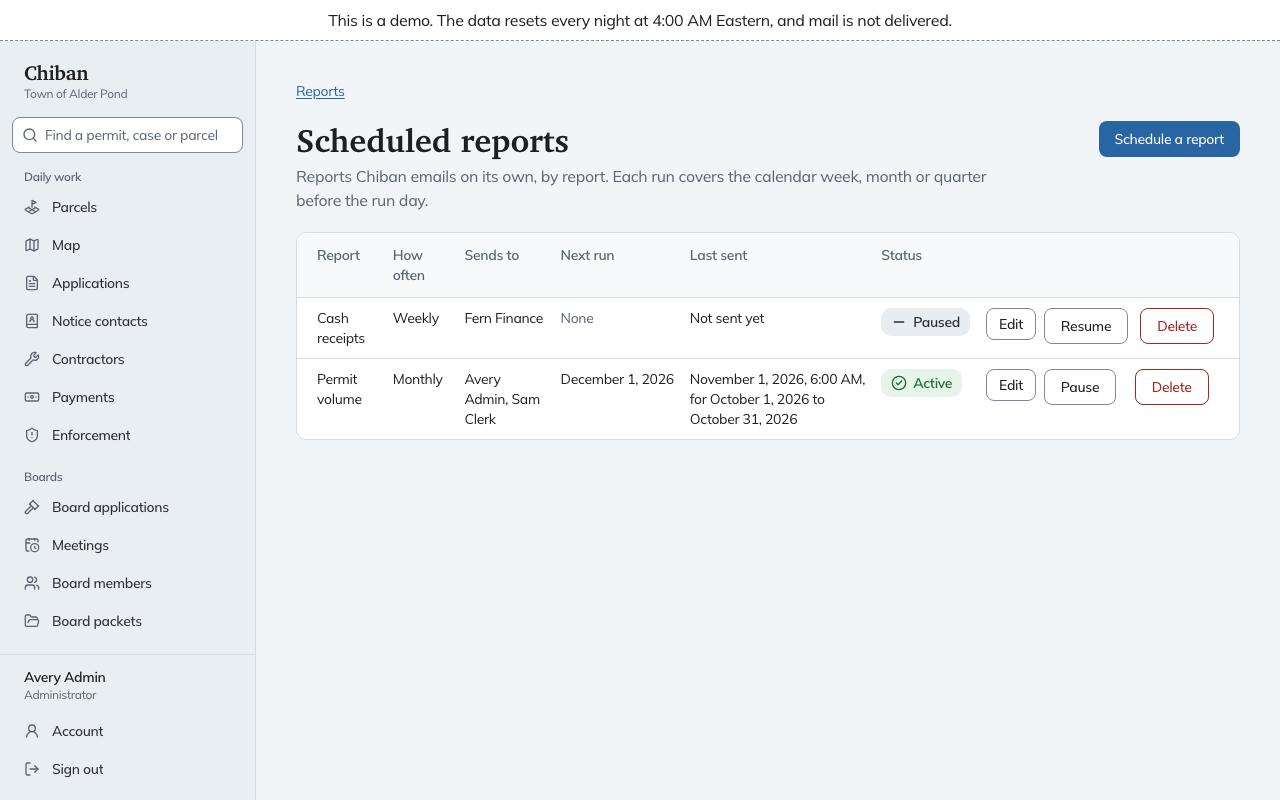
The list
Each row is one schedule: the Report, How often, who it Sends to, the Next run date, Last sent (with the dates that send covered) and a status of Active or Paused. A paused schedule shows None under Next run.
A new town may already have monthly schedules for Permit volume, Processing time and Revenue, sent to its first administrator.
Adding a schedule
Choose Schedule a report.
- Pick the Report: Permit volume, Processing time, Revenue, Cash receipts or Census building permits. You only see reports you may see yourself.
- Pick How often: Weekly, Monthly or Quarterly. The census report can only go out monthly.
- Tick Send it to each person who should get it. A person who cannot see that report is listed as "cannot see this report" and cannot be ticked. The revenue and cash receipts reports need the money permission, which is why finance staff appear for them and some others do not.
- Choose Schedule report.
When it runs
Chiban sends the email early on the run day, in the town's time zone. Each run covers the whole calendar period before the run day.
- Weekly goes out on Mondays and covers the week before.
- Monthly goes out on the 1st and covers the month before.
- Quarterly goes out on January 1, April 1, July 1 and October 1 and covers the quarter before.
The subject names the report and the period, and the email says it is attached as a CSV file and an Excel workbook. Each person gets the report as they would see it themselves.
Changing a schedule
- Edit changes the report, the frequency or the recipients.
- Pause stops it without losing it, and Resume starts it again.
- Delete removes it. Chiban asks you to confirm. Reports already sent stay with the people who got them.
Every email says that anyone who can see reports can pause or change the schedule under Reports, Scheduled reports.
When a report cannot go out
- A recipient who has since lost the permission to see the report is skipped.
- A census report with unclassified permits is not attached. The email says how many permits need classification, and you classify them on the census report page and download it there.