Assembling and sending a board packet
A board packet is what the board reads before a meeting: the agenda, a cover page with a table of contents, and the documents for each application on the agenda. This page is for the board secretary and planning and zoning staff, and for anyone else who needs to know what members get. Creating packets and sending them needs the permission to manage board packets, which land use staff and administrators have.
Where packets are managed
Each meeting has one packet, and you work on it from the meeting page, under Packet. The Board packets page under Boards is the list that tells you which packets need attention.
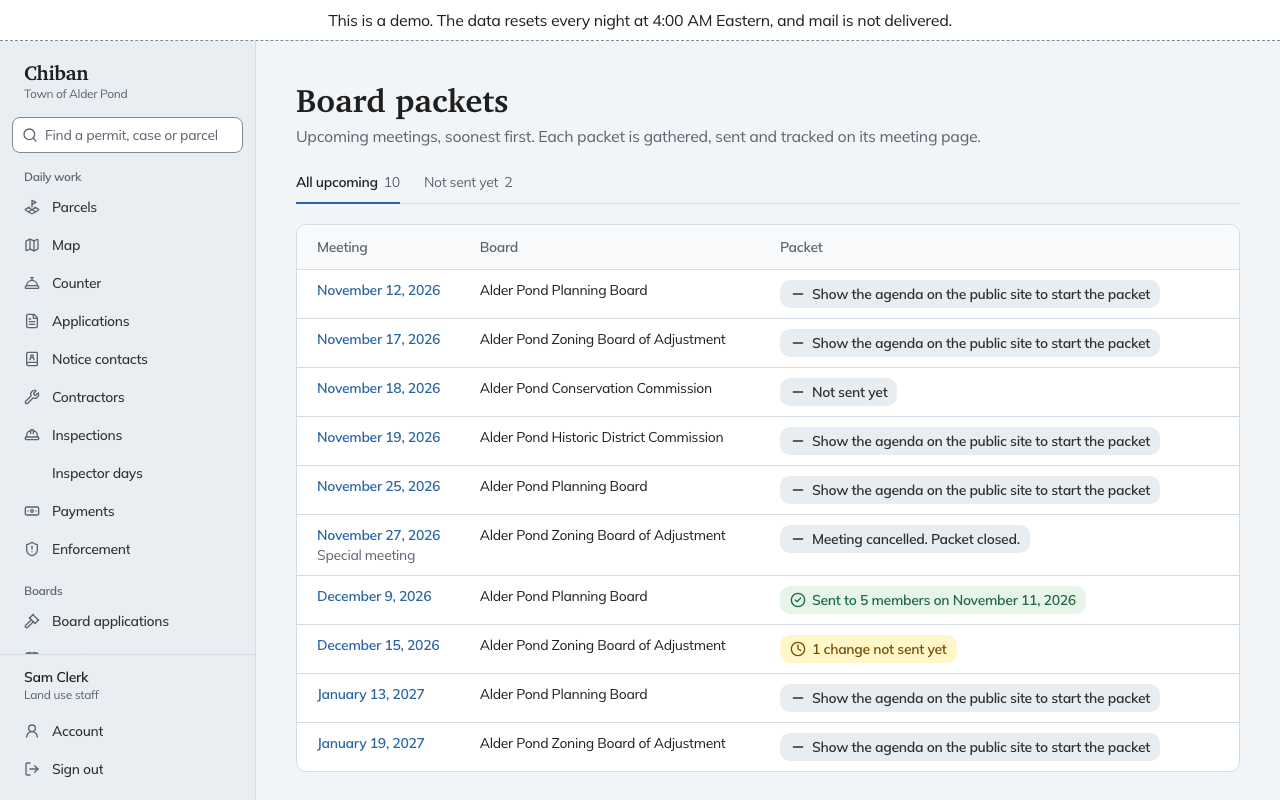
For each upcoming meeting the list shows the board and the state of the packet:
- Show the agenda on the public site to start the packet, because a packet cannot be started until the agenda is published. See meetings, agendas and minutes.
- Not sent yet, when the packet is started but nobody has it.
- Sent to 5 members on a date.
- 1 change not sent yet, when something changed after the packet went out.
- Meeting cancelled. Packet closed.
The Not sent yet tab narrows the list to packets that need work. The Board packets card on Today counts the same ones.
Gather the documents
Open the meeting and go to Packet. The Gather step lists the agenda and then each application on the agenda, with the documents on file for it. Tick the documents that belong in the packet and select Save the packet.
Some documents cannot be ticked, and the line says why:
- Not shared with the board. A document staff have not shared with the board stays out of the packet. If you may share documents, Share with the board sits beside it. Select it and the document becomes available to tick.
- Belongs to the other board. A document attached to the other board's work, such as the Zoning Board's papers on a Planning Board packet, cannot go in.
- No approved public copy. A document that has no approved public version cannot go in.
If the application was reviewed by the Technical Review Committee, you can tick Make TRC summary. It makes a summary document from the committee's review and puts it in the packet. Where there was no review, the line says No TRC review on this application.
Review
After you save, the Review step lists everything the packet holds, in order.
- Preview the cover page opens the cover page in a new tab.
- Change the Title and select Save title if the default does not suit.
- If the agenda was reopened and published again since the packet was gathered, a notice reads "The agenda changed. Replace it in the packet?" Select Replace the agenda to put the new one in.
Send
The Send step lists who will get the packet.
To send it to every member seated today, select the button that begins Send to the and names the board and how many members it has. The members get an email, described below. If some members already have the packet, for example because they joined the board after it went out, the button changes to send it to the members who do not have it yet.
Under Also send to someone outside the board, you can give the packet to a person who is not on the board, such as town counsel.
- Enter the Name and Email.
- Set the Days until the link expires. It starts at 14 and can be anything from 1 to 30.
- Select Send the link.
They get an email with a private link that opens the packet without signing in. The link stops working after that many days.
Each person on the list has a line saying how they get the packet: "signs in on the board page" for a member, or "private link, expires" and a date. Resend sends the email again. For a private link, Turn off link stops it working at once, after you confirm. Resend then gives them a new link.
Send an update
Documents and agendas change after a packet goes out. When they do, the packet's state reads, for example, 1 change not sent yet, and the meeting's Next step offers Send the packet update. Select Send update under Send. Everyone who has the packet gets an email that lists only what changed. A person with a private link is told to open the packet from the link in their earlier email.
Track who has read it
The Track step shows, for each person who was sent the packet, when it was Last sent, when they First opened and Last opened it, and how many Documents opened. Someone who has not opened it shows Not yet.
What members receive
A member gets a short email with the meeting date, time and place, and a line saying "Sign in at" the town's board page to read it. The email does not contain the documents. The member signs in with an emailed link, opens Your board, and finds the packet there. Reading the packet as a board member describes what they see.
An update email says the packet changed and lists what changed. If the meeting is cancelled, the email says so, gives the reason and says the packet is closed and its links no longer work.
A person with a private link opens the packet at that link. The page names the board and the meeting, says when the link stops working, and lists the same cover page, agenda and documents. If the link has expired, it says "This link has expired" and tells the person to ask the land use office for a new one. If you turned it off, it says "This link no longer works".
When the meeting is cancelled
Cancelling a meeting closes its packet. Members can no longer open it, and private links stop working. See cancel a meeting for the option to email everyone who had the packet.