Reading your packet as a board member
This page is for people who sit on a town board, such as the Planning Board or the Zoning Board of Adjustment. In the demo, Robin Vale sits on the Planning Board and Drew Hale sits on the Zoning Board. Everything you need is on one page called Your board, so there is no need to learn the rest of Chiban.
Signing in
You do not have a password. The land use office adds you to your board and emails you. Open the town's board page, enter your email address and select Email me a sign-in link. The link in the email signs you in. Each sign-in needs a new link.
If you cannot get in, ask the land use office to check that you are on the roster and that your term includes today.
Your board page
Your board shows only the meetings of the board you sit on, and only once the office has put the agenda on the public site. Until then there is nothing for you to see.
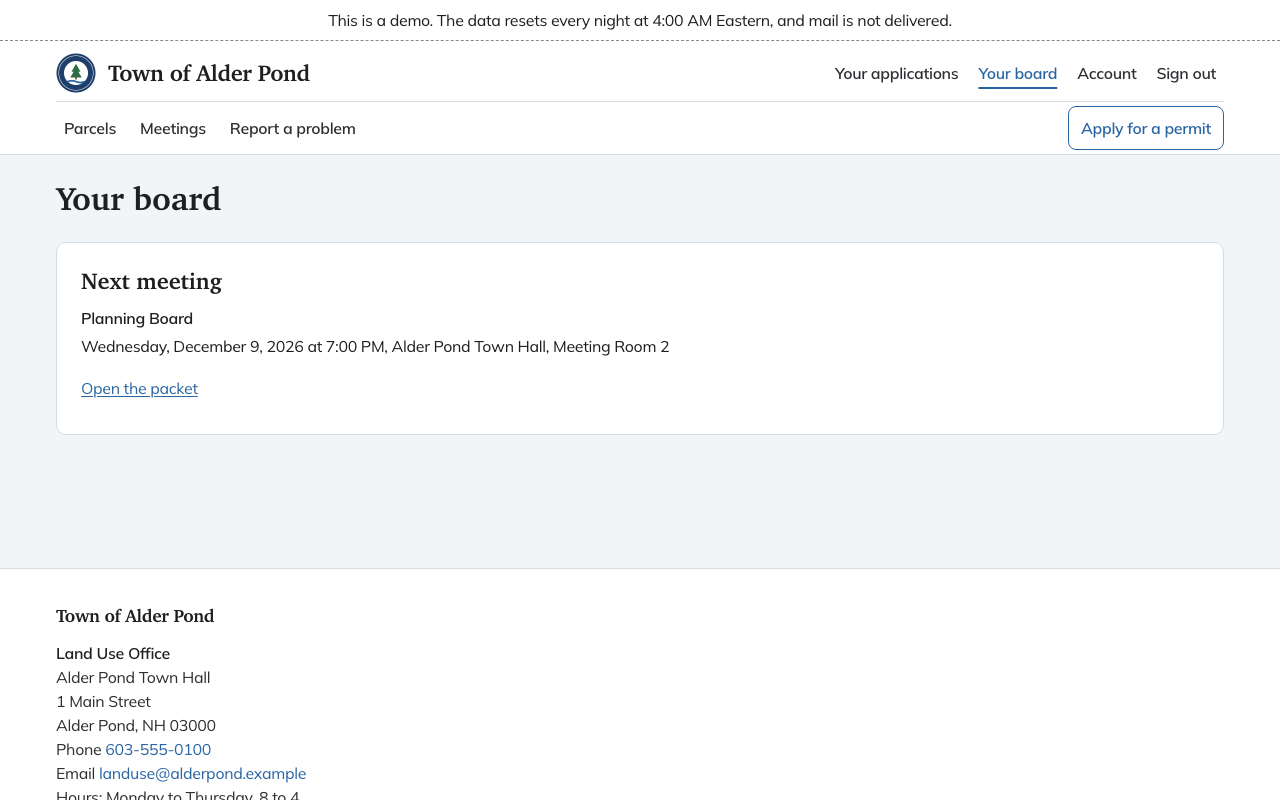
The page has up to three lists.
- Next meeting is the next one coming up, with its day, time and place.
- Later meetings are the ones after it.
- Earlier meetings are past ones, with links to the minutes once the board has approved them and to the Notice of Decision for each application it decided.
A tag beside the board name tells you what has changed. New means a packet you have not seen yet. Updated with a date means the office sent more material. Cancelled means the meeting will not take place, and its packet is closed.
When there is a packet, you will see Open the packet. If the agenda is posted but the packet is not ready, you will see Read the agenda instead. If the agenda has not been posted at all, the page says so. If nothing has been prepared for you yet, the page says "No meeting packets are ready for you yet. You will get an email when one is."
Reading the packet
When the office sends a packet, you get an email with the meeting date, time and place and a line telling you to sign in to read it. The email does not hold the documents.
Select Open the packet. The page lists:
- Cover and agenda, with the Cover page and contents and the agenda for the meeting;
- one section for each item on the agenda, headed with its number, the application and its address, with the applicant's name and the documents for it, such as the plans.
Each document opens in a new tab. Nothing is shown here that the office has not chosen to put in the packet. If the office changes the packet after you have read it, you get a second email that lists only what changed.
The office can see which members have opened the packet, when they first and last opened it, and how many documents they opened.
Requests for comment
Some boards, such as a conservation commission or a historic district commission, only advise on an application. If you sit on one, Your board also has a list called Sent to your board for comment. Each entry gives the application and the date comments are due, with a tag such as No comments yet or that your board has commented.
Select an application to open it. The page shows the application's details, its documents, and the comments your board has already made. To add yours:
- Write it under Comment.
- Select Post comment.
You cannot change a comment once it is posted. The land use office and the other members of your board can read it, and your name is shown with it. When the application is finished, comments close and the page says so.
If something looks wrong
- A packet link the office sent you separately from your sign-in works for a set number of days. If it has expired, the page says so. Ask the land use office for a new one.
- A meeting you expected is missing. The office controls which members are seated, so ask them to check that your term includes the date.
The land use office's contact details are at the foot of every page.