Meetings, agendas and minutes
This page is for the board secretary and planning and zoning staff. Hearings are scheduled for a meeting, its agenda is published on the town's site, its packet goes to the board, and its minutes are filed after it. You need the permission to record board business, which land use staff and administrators have.
The meetings list
Open Boards, then Meetings. The page lists meetings for every board, soonest first under Upcoming and most recent first under Past.
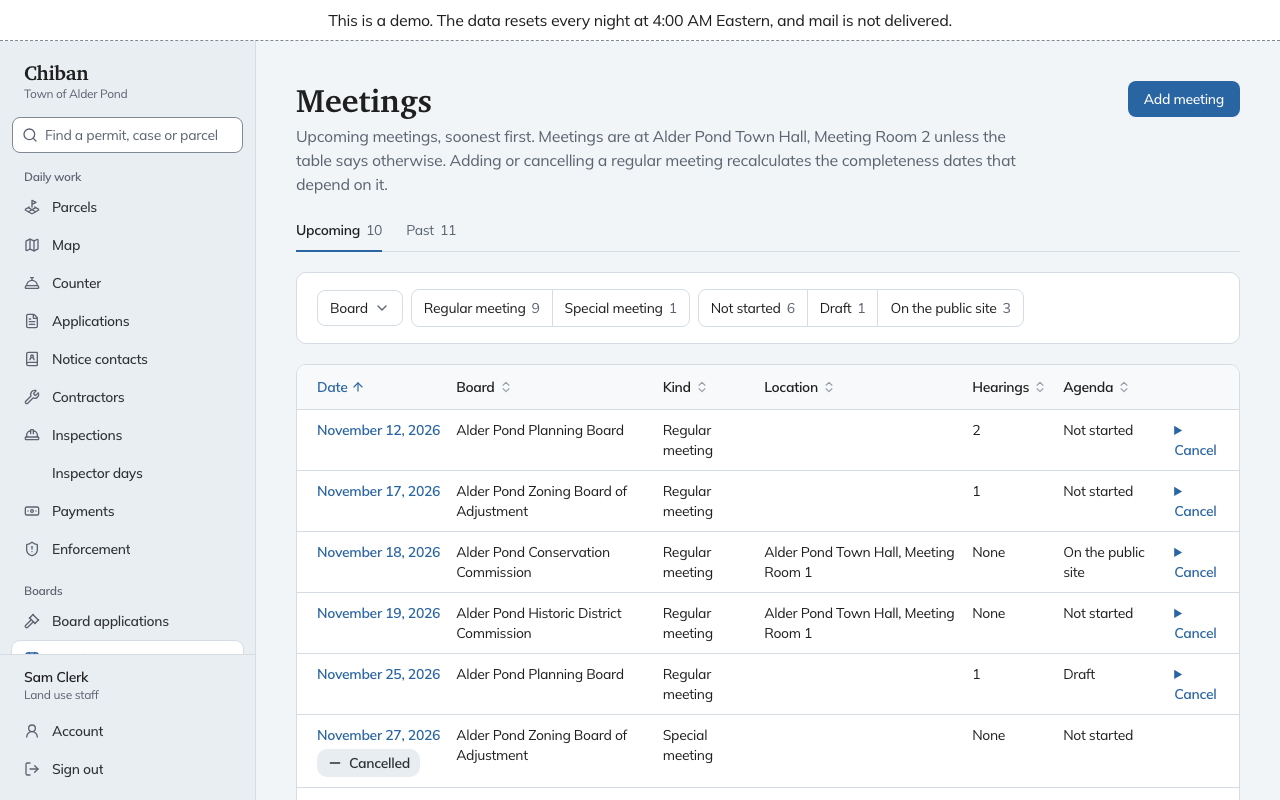
The filters narrow the list by Board, by Kind (regular or special meeting) and by Agenda: Not started, Draft or On the public site. The table shows the date, board, kind, location, how many hearings are on the meeting, and the agenda status. A location only appears in the table when the meeting is somewhere other than the usual place. Select a date to open the meeting.
Add a meeting
- Select Add meeting.
- Choose the Board.
- Enter the Date.
- Choose the Kind, Regular meeting or Special meeting.
- Enter the Location.
- Select Add meeting.
Chiban refuses a second meeting for the same board on the same date. Adding a regular meeting recalculates the completeness dates that depend on the board's meeting calendar, so applications may show new deadlines afterwards. A special meeting does not change any dates.
The form has no field for the time of day. Every meeting is added for 7:00 PM, and Chiban has no screen to change it. Notices, agendas and the public meetings page all show that time.
Cancel a meeting
On the meetings list, open Cancel beside the meeting, enter a Reason and select Cancel meeting. A meeting that has already taken place cannot be cancelled.
A cancelled meeting stays on the list marked Cancelled, and the public meetings page shows it as cancelled. It cannot be brought back, so add a new meeting if the board meets after all. Its agenda can no longer be changed, and its packet is closed.
If the meeting's packet had already been sent, the cancel form also offers Email the packet's recipients that the meeting is cancelled. Tick it and everyone who was sent the packet gets an email giving the reason. Their packet links stop working either way. Cancelling a regular meeting recalculates dates the same way adding one does.
The meeting page
Each meeting has a page with its details on the right and its work in the middle. The Next step box on the right always shows the one thing to do next:
- Add the scheduled hearings or Add the first agenda item, when the agenda has nothing in it.
- Show the agenda on the public site, when the agenda is a draft.
- Prepare the packet or Send the packet update, when the agenda is on the site and the packet needs work. See board packets.
- Record the minutes, once the meeting is in the past and its minutes are not yet approved.
Below it, the page lists the meeting's Hearings, its Agenda, its Minutes and its Packet. A section with nothing to show yet is folded away.
Build the agenda
Agenda work happens on the meeting page, under Agenda.
- Select Add the scheduled hearings. Every hearing scheduled for this meeting goes on the agenda, in order, as an item such as "Submission and public hearing: Site plan review (major) SPR-2026-0004". A hearing that was continued to this meeting is included. If every hearing is already there, Chiban says so and adds nothing.
- Use Add an item for everything else. Choose the Kind, which is Business, Minutes (for approving earlier minutes) or Other. Enter a Title and, if you want, some Details, then select Add item.
- Use Move up and Move down to put the items in order, and Remove to take one off. Removing asks you to confirm.
You can change the agenda this way only while it is a draft.
Show the agenda on the public site
When the agenda is ready, select Show the agenda on the public site. An agenda needs at least one item. Chiban then:
- makes a PDF titled "Agenda for" and the meeting date;
- lists it on the public meetings page and on the board page that board members see;
- starts the packet for the meeting, which you can then prepare.
Once an agenda is shown, the Agenda line on the meeting page says when it was shown and which revision it is.
To change it, select Reopen the agenda. Chiban asks you to confirm, takes the agenda off the board page and the meetings page, and turns it back into a draft. Make your changes and show it again. The new PDF is titled with its revision number, such as "revision 2". If the packet was already sent, the packet then asks whether to replace the agenda in it.
Record the minutes
After the meeting, the meeting page has a Minutes section.
- Under Upload the minutes, add the file. Give it a name and upload it.
- Under Minutes, choose the file you uploaded.
- Choose the Status: Draft, not yet approved, or Approved by the board. Only someone who can publish documents sees the approved choice. In the demo, Sam Clerk can.
- If the status is approved, enter the Date approved. It cannot be before the meeting or after today.
- Select Record the minutes.
Draft minutes stay inside the office. Approved minutes are shown on the public meetings page and are listed for board members under their earlier meetings. Once minutes are approved, they cannot be replaced. Chiban will not record minutes for a meeting that has not happened yet, or for one that was cancelled.
The minutes you file here belong to the meeting. When the board decides an application, the decision is filed with its own copy of the minutes from the decision page. See decisions and notices of decision.
The public meetings page
Anyone can open Meetings on the town's site without signing in.
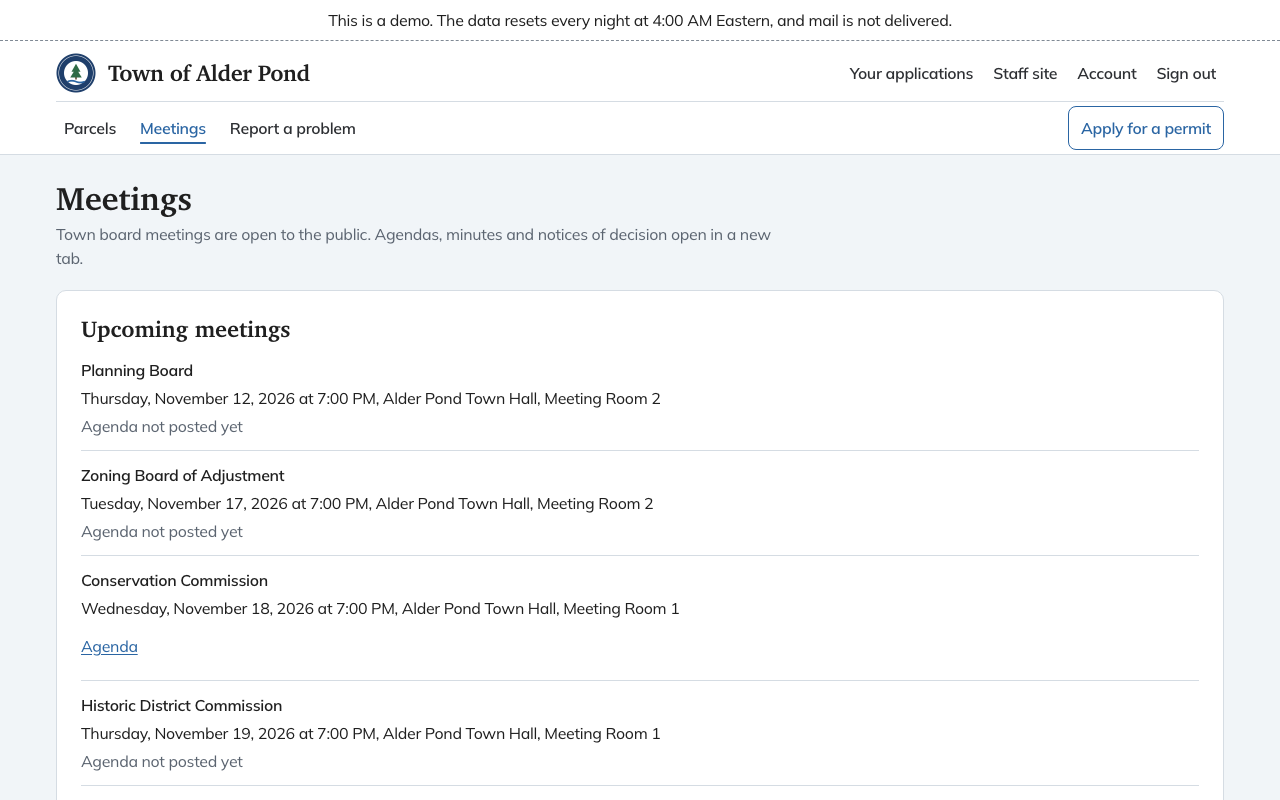
It has four lists.
- Upcoming meetings gives the board, the day, the time and the place of each meeting. It shows a link to the Agenda once the agenda is on the site, and "Agenda not posted yet" until then. A cancelled meeting says Cancelled.
- Hearing notices lists each scheduled hearing with its notice text and a Printable notice (PDF). A hearing is listed until it is held, and a cancelled meeting's hearings are left off.
- Past meetings and minutes lists meetings whose minutes the board has approved, with a link to them.
- Decisions lists decisions once they have been filed, with links to the Notice of decision and the Minutes.
Agendas, minutes and notices of decision open in a new tab. Nothing reaches the page until staff publish it, so a draft agenda or draft minutes are never shown.