Recording a result
This page covers what to enter in Chiban once you have seen the work, so the permit holder gets a clear answer and the permit moves on.
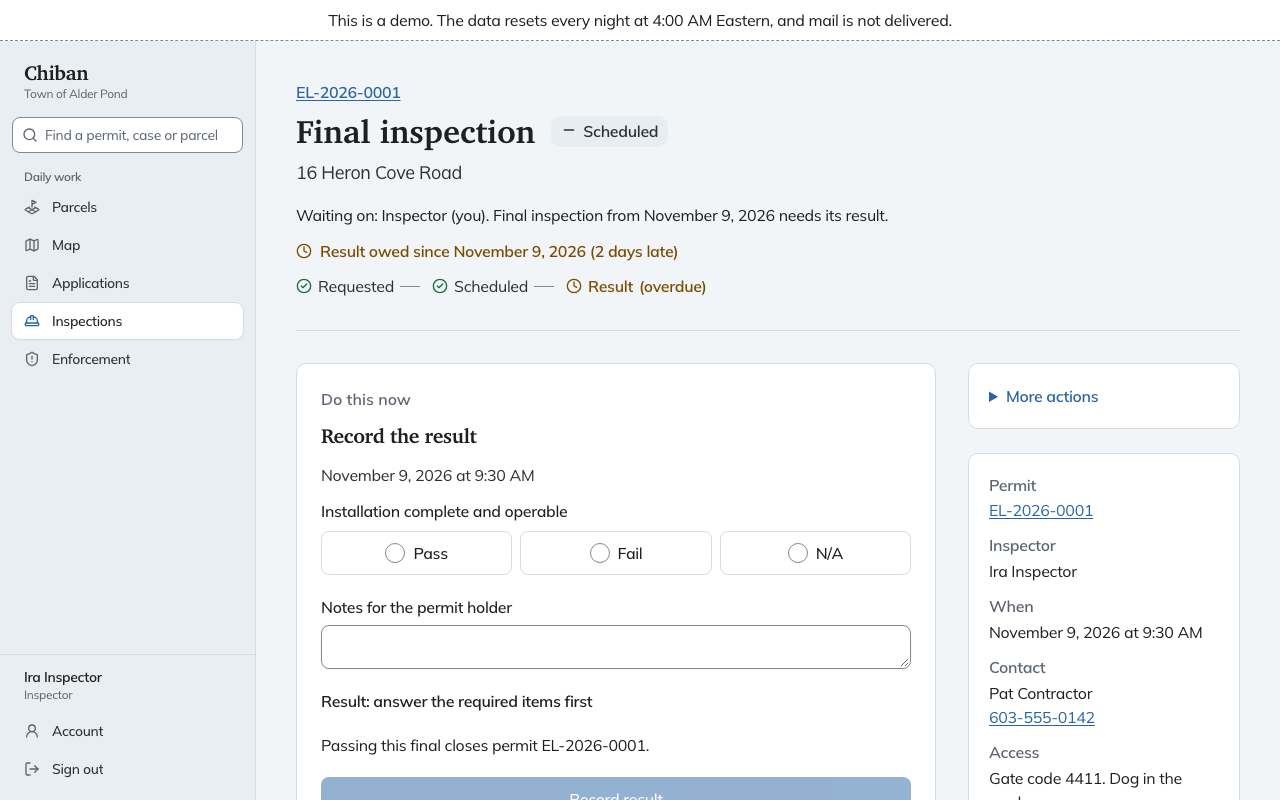
Open the inspection from My day with Record result, from the Results owed list, or from the permit. The page shows the checklist under Do this now.
When you can record
A result can be recorded on or after the scheduled date, never before. Until then the page shows the checklist as a preview, with Record the result on the day.
Only the inspector the inspection is assigned to can record it. Someone who holds both the land use staff and inspector roles can record any inspection. Anyone else sees Waiting on the inspector's name.
Chiban refuses to record a result while the permit is under appeal. The page says inspections are paused, and the checklist opens again once the appeal is decided.
Fill in the checklist
Each item has three choices: Pass, Fail and N/A. Items marked (optional) can be left blank.
- A required item cannot be N/A. The page says A required item is N/A. Mark it Pass or Fail.
- Marking an item Fail opens a Note on that item. Say what is wrong with it.
- Notes for the permit holder is the message the applicant reads. A failed inspection needs at least 10 characters here, and the page says Write at least 10 characters about what failed.
A line under the form shows the result Chiban will record: Result: Passed when every required item is answered and none failed, Result: Failed when any item failed, and Result: answer the required items first until you are done. One failed item fails the whole inspection.
On a final inspection a second line says what a pass will do to the permit. See finals and certificates of occupancy.
Record it
Choose Record result. A confirmation asks, for example, Record the Final inspection as passed? and reminds you that A result cannot be changed once it is recorded. Choose Record as passed or Record as failed, or Keep editing to go back.
Chiban has no button to edit or undo a recorded result, so read the confirmation before you choose.
After you record it:
- The page shows a Result section with each item's outcome and your notes.
- The permit holder is emailed that the inspection has a result.
- The permit's inspection list shows the result, your notes and the number of photos.
Photos
The Photos section on the inspection holds the pictures. Open Add a photo, choose Take or choose a photo, and give it a short title under What the photo shows. On a phone this opens the camera. Photos must be JPEG or PNG and no larger than 25 MB.
Photos stay in the town's file and do not appear on the inspections page of the people on the permit. See what applicants see.
A failed result
Failures lead to reinspections. See failed inspections and reinspections.