Scheduling inspections
Someone calls the office and asks for a framing inspection on Friday, or a contractor asks online. The request has to become a time on an inspector's day, and the permit holder has to hear about it. The schedule board does that. Land use staff and inspectors can both use it.
Land use staff open it from Inspections. For an inspector, Inspections opens My day, and the home page and the empty-day message link to the board.
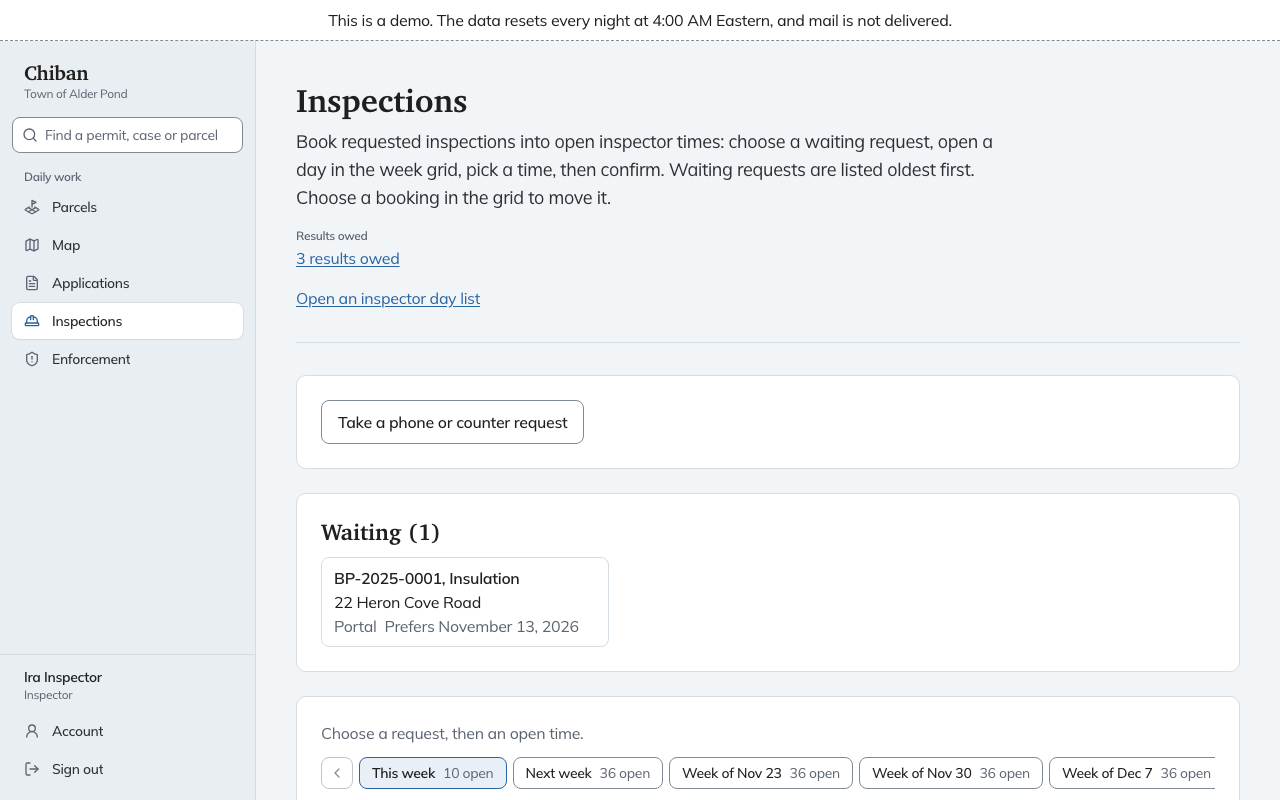
Take a request over the phone or at the counter
- Choose Take a phone or counter request.
- Enter the permit number and choose Find permit.
- Say how the request came in: Phone or Counter.
- Choose the Inspection. Only types still open on this permit are listed.
- Pick a Preferred day, or leave No preference. The days listed are the days the town inspects.
- Fill in Contact name, Contact phone and Access notes.
- Choose Record request.
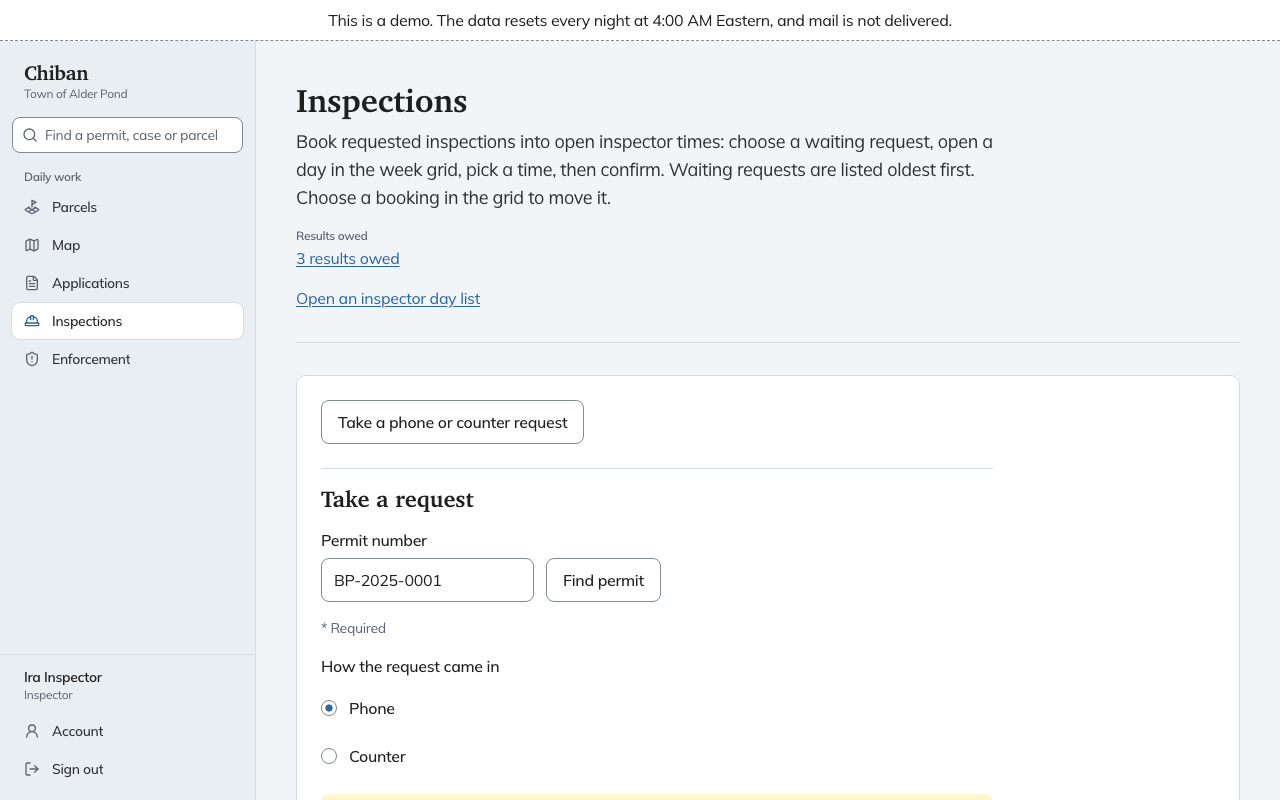
If the call comes outside the town's phone request hours, the form shows a note with the hours. It also says you can still take the request.
Chiban refuses a request in these cases and says why on the page:
- The permit number matches nothing: No permit has that number.
- The permit is not issued yet, so it cannot be inspected.
- The permit is under appeal. Inspections are paused until the appeal is decided.
- Every inspection on this permit is already requested, scheduled, or passed.
The request now waits on the board. Requests that applicants make online arrive there too, marked Portal.
Book a time
The Waiting row lists requests that have no time yet, oldest first. Each shows the permit number, the inspection type, the address, how the request came in, and the day the requester prefers. When more than a handful wait, a search box appears.
- Choose a waiting request. It is marked Chosen.
- In the week grid, find the inspector and the day. The grid has one row per inspector and one column per day the town inspects. The preferred day is marked. Each cell shows what is booked and how many times are open.
- Choose the open count to see the open times, then choose a time.
- Read the line that appears, such as "Book Friday, November 13, 2026 at 11:30 AM with Ira Inspector," and choose Book. Choose Cancel to back out.
Use the week buttons above the grid to look further ahead. Each shows how many times are open that week.
The people on the permit, the applicant, owner, agent and contractor, receive an email that the inspection is scheduled, with the date and time. The inspection then shows on the inspector's My day.
If someone else booked the same time a moment earlier, Chiban says That time was just taken. Pick another. It also says so when the inspector is full for the day. The town's inspection days, hours, slot length, notice rule and daily limit are set by an administrator under Settings, Inspection schedule. Chiban does not let you book outside them.
Move a booking
Choose a booked line in the grid, labelled with its time and permit number. It becomes the chosen request. Then pick a new time exactly as above. You can also open the inspection, choose More actions, then Reschedule, which brings you back to the board with that inspection chosen. Moving a booking to another inspector's row hands it over.
Cancel an inspection
Open the inspection, choose More actions, then Cancel this inspection and confirm with Cancel the inspection. The permit holder is told. If the inspection is still needed, take a new request.
Chiban also cancels open inspections by itself when the permit is suspended, expires or closes.
Results owed
Results owed on the board counts scheduled inspections dated before today that have no result, across every inspector. Choose it for the list, oldest first, with who the inspection was assigned to and how many days late it is. Record result opens the inspection. Only the assigned inspector, or someone who holds both the land use staff and inspector roles, can record it.