Log and answer a Right-to-Know request
Use this page from the day a request arrives until the first response goes out. Getting records to the requester and closing the request are on the next page. Land use staff and records custodians can do everything here.
Residents cannot send a request through the town's public site. Staff log every request, whether it came in at the counter, by mail, by email or by phone.
Log the request
- Open Right-to-Know in the staff menu and choose Log a request.
- Date received starts as today. Change it if the request came in earlier. It cannot be a future date.
- How it arrived offers In person, Mail, Email, Online and Phone.
- Requester name and Requester email, phone, or address are optional. If you plan to release records by email link, you will need an email address at that step.
- Put the request in the requester's words under What was asked for.
- Choose Log request.
Chiban gives the request a number such as RK-2026-0001 and starts the first-response clock.
Watch the deadline
The first response is due five business days after the request is received. The day it arrives is not counted, and weekends and the legal holidays on the town's holiday list are skipped. Deadlines and holidays lists the holidays Chiban uses.
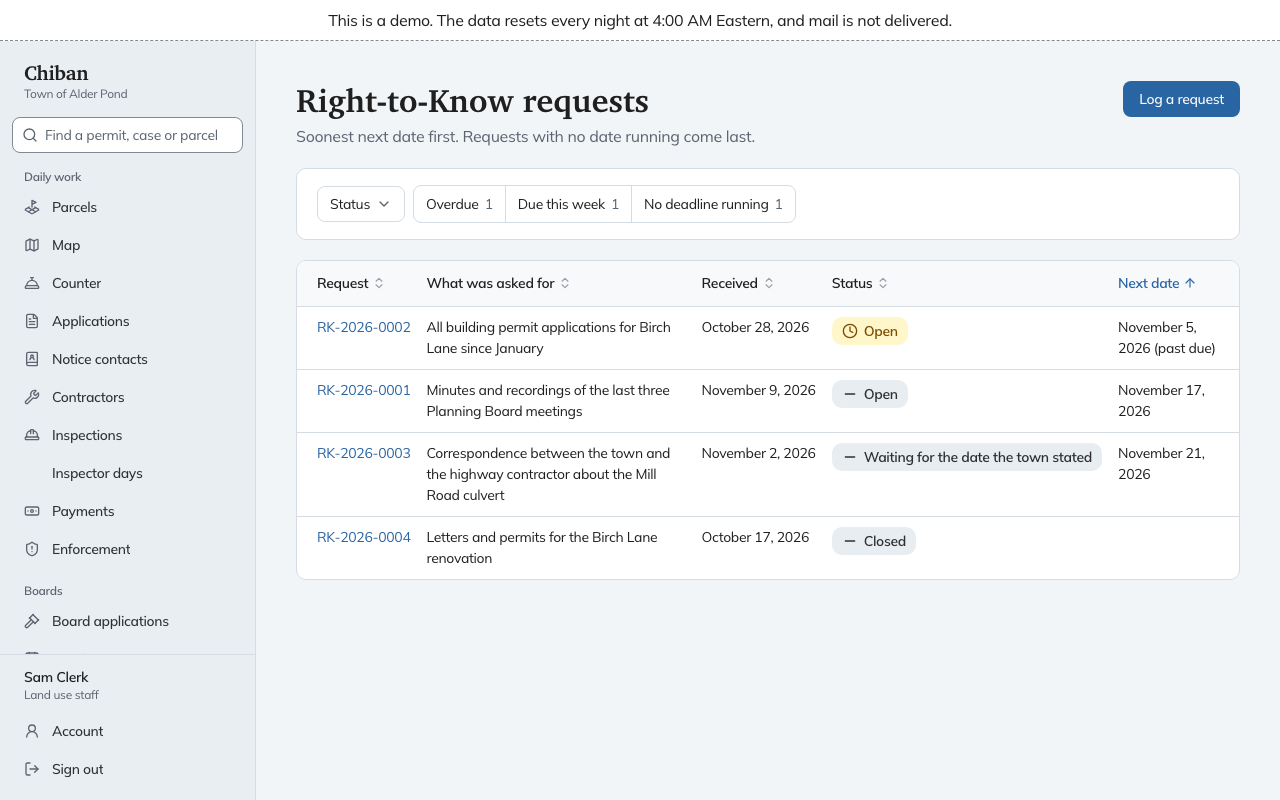
The list puts the soonest date first, and requests with no date running come last. A date that has passed is marked (past due). The Status filters above the list narrow it to Overdue, Due this week or No deadline running.
Open a request and the sentence under its title says what is waiting and when it is due, for example "Waiting on: Town. Send the first response. First response due November 17, 2026, 6 days left." Under Due next, How it is counted shows the start date and the counting method.
You can still record a late response. The request then shows "Answered late" with the due date and the answer date.
Send the first response
Open the request. Under Do this now, Send the first response, choose one of four responses.
Release the records now. Use this when the records are ready. You find each record, approve the version to release and release it, all from this card. The first release records the response and files its letter. The steps are on the next page.
Written statement of the time needed. Use this when you cannot answer in time. Fill in:
- Date of response, which starts as today.
- Date the town will respond by, on or after the response date.
- Why more time is needed.
- Charge, if any (what it is for) and Charge in dollars. Fill in both or neither.
The request moves to Waiting for the date the town stated, and the deadline becomes the date you gave. From there you either release the records or deny the request. A request takes only one written time statement, and the response choices disappear once it is recorded, so give a date you can keep.
Records are posted on the town website. Enter the Web address where the records are posted and the date. The request becomes Responded, ready to close.
Denied. This choice stays greyed out until you have recorded a withheld record with its exemption and explanation. See the next section.
Record what you are withholding
Under Records withheld or redacted, open Record a withholding.
- Record is: Withheld in full or Released with redactions.
- Which record: the record in your own words.
- Exemption: the list of exemptions the state pack offers, or Made confidential by another law. For that one, name the law under Law, if made confidential by another law.
- How the exemption applies (a sentence or two): at least 20 characters.
Choose Record withholding. When you release a copy redacted in Chiban, the exemptions drawn on its boxes are recorded here for you. Enter a withholding by hand only for a record you are keeping back entirely, or for a redaction made outside Chiban. See Redact a document.
Deny a request
Once a withholding is on file, choose Denied as the first response. After a time statement, use Or deny the request and then Deny the request on the Do this now card. Either way you enter the Date of the denial. Chiban files a denial letter naming every withheld record and its exemption, and the request moves to Responded.
The letter is filed, not sent
Each response files a letter as a PDF. Open it from Letters on the request. Chiban does not email or print it, so send it to the requester yourself. The wording comes from the "Response to your Right-to-Know request" template, which an administrator can edit under Settings, Templates.