Moving open applications over
When the town switches to Chiban, some applications are still in progress in the old system. This page is for those: permits waiting for review, approved but not yet issued, or issued and still being inspected. Chiban reads them from a CSV file with one row per application and files each under its parcel, so staff can carry on in Chiban the day it opens.
Permits that were finished long ago belong on the parcel's history instead. See loading an old permit ledger.
You need the permission to import applications, which administrators and land use staff have. The page is under Settings, then Administration, as Move open applications over. Load the parcels first, with GIS layers, because every row must name a parcel Chiban knows.
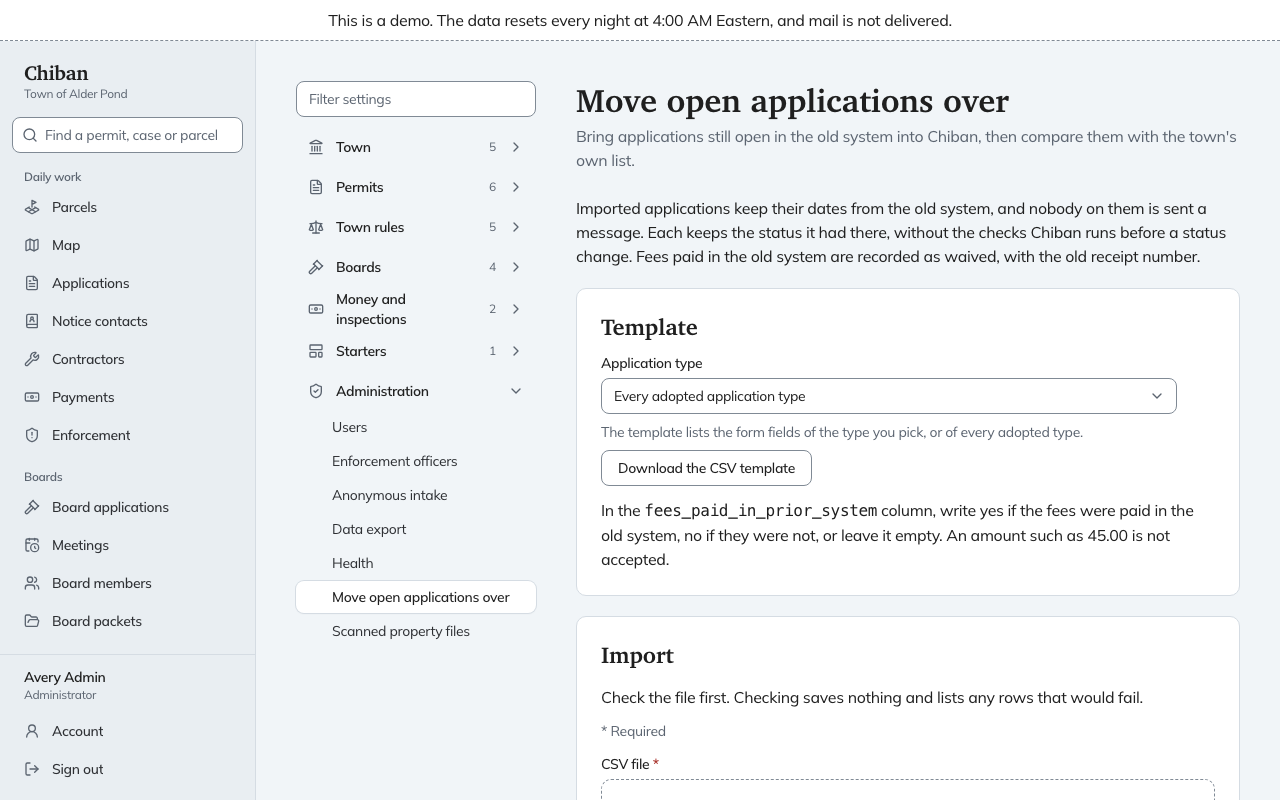
What an imported application is
These differ from an application filed in Chiban, so read them before the first real import.
- It keeps the dates from the old system. The received, decided and issued dates are the ones in your file, not today's.
- It keeps the status it had there. Chiban moves it to that status without running the checks it applies to a status change in daily use, so a permit can arrive issued even when Chiban would have asked for something first.
- Nobody on it is sent a message. The applicant and contractor you list are added to the project, and no email goes out.
- Fees paid in the old system are recorded as waived, with the old receipt number as the reason. That keeps the permit from showing a balance due.
- It gets a new Chiban application number. The old number is kept as its legacy number.
1. Download the template
Under Template, pick an Application type, or leave Every adopted application type, and choose Download the CSV template. The file is only a header row. For a single type, its name ends with that type's short key, for example cutover-template-electrical.csv, and you need that key in every row.
The header has these columns.
| Column | What to put in it |
|---|---|
legacy_number | The number the old system used. Required, and it must be unique |
application_type_key | The type's key, as in the template file's name. Required |
parcel_id_format, parcel_id | The parcel's ID. The ID is required. Leave the format empty if Chiban's default ID format applies |
project_title | A short name for the project |
applicant_name, applicant_email | The applicant. The email may be empty |
owner_name | The owner, if different |
contractor_name, contractor_email | The contractor, if any |
state | submitted, under_review, decided or issued. Required |
received_date | The day it was filed, written YYYY-MM-DD. Required |
completed_date, decided_on, issued_on | Written YYYY-MM-DD. A decided row needs decided_on and an issued row needs issued_on |
fees_paid_in_prior_system | yes, no, or empty. Never an amount such as 45.00 |
prior_receipt_ref | The old receipt number |
The columns that start with field. are the questions on the application form for the type you chose. Fill in the ones you have. A date in the future is refused.
2. Check the file
Under Import, choose the CSV file and then Check the file. A check saves nothing. It reports how many rows would import, how many were already imported and how many have errors, and lists the first ten errors by line number with a plain sentence each, for example "No parcel in Chiban matches the parcel ID on this row." or "A decided application needs a decided date."
Fix the spreadsheet and check again until the errors are gone or you understand them.
3. Import
Choose Import the file. Rows are brought in one at a time. A row with an error is skipped and the rest still load, and the message afterward gives the same counts. Running the same file again skips every legacy number already imported, so you can correct the failed rows and load the file once more.
4. Attach the scanned files
Imported applications have no documents yet. Whoever runs the server can attach them from a folder that holds one subfolder per legacy number, named exactly like the legacy number.
node dist/cutover-attach.mjs --dir scans --as clerk@town.example
The person named with --as must have the permission to import applications. PDF, JPEG and PNG files are accepted. A file already attached is not added twice. The command lists any folder that matches no imported application.
5. Compare with the town's own list
The old system's list of open applications is the check on the import. Under Compare with the town's list, choose a CSV file with a legacy_number column and choose Compare with the list.
Chiban reports three things: how many numbers matched, which are on the list but not imported, and which were imported but are not on the list. The first ten of each are named in the message. The table under the form keeps the last ten comparisons with their counts.
When the counts are what you expect, an administrator chooses Sign off on that comparison. This records that someone checked the list against what was imported, and it cannot be undone. Until then the row reads "Waiting for an administrator".