From intake to issued permit
Every application has a record page that tells you what to do with it. This page explains how to read it, then follows a building permit from the day it arrives to the day it is issued and closed. Other permit types skip some of these steps, and your administrator decides which steps each type has.
Board applications, such as a site plan or a variance, follow the same record page but add meetings, votes and a written decision. Those steps are covered in the boards guide.
Reading the record
Open an application from the Applications list, from Today, from a parcel page or from search.
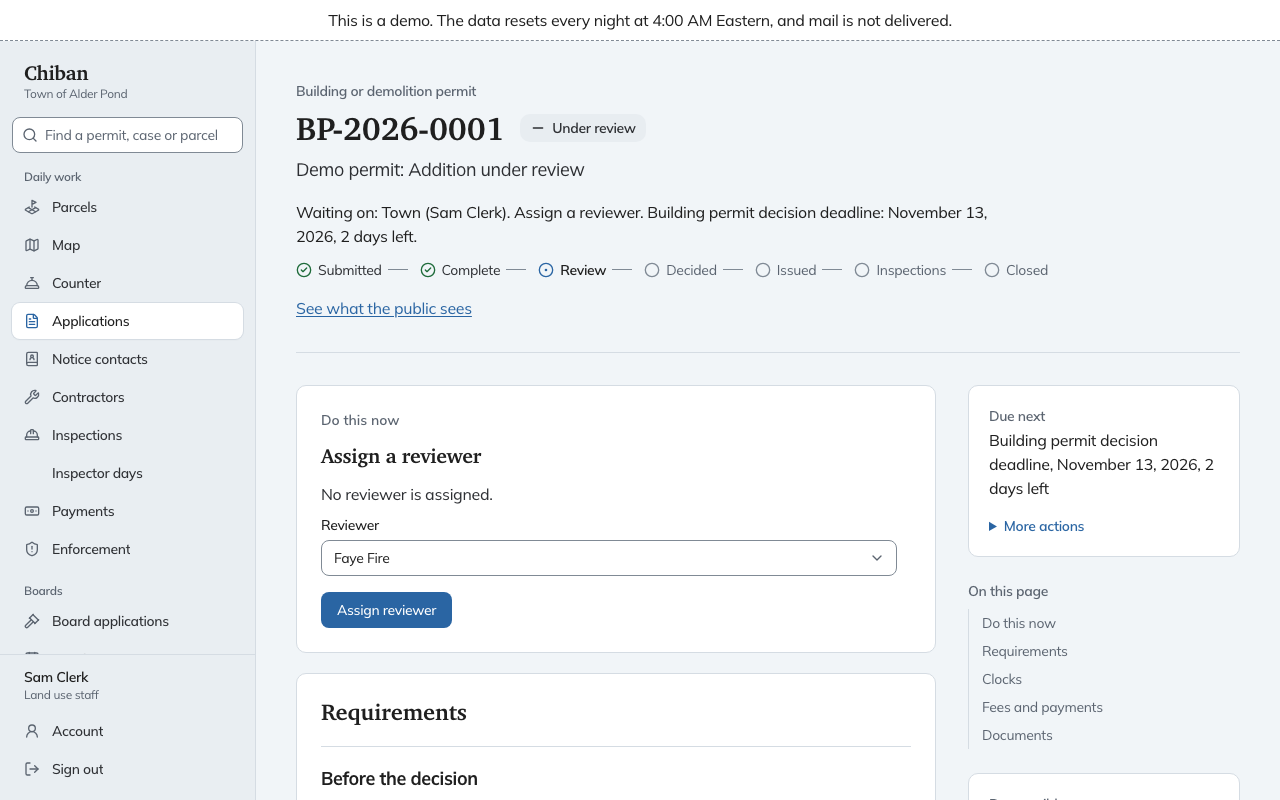
- The header gives the permit type, the number, the status and the project title.
- The status sentence starts with Waiting on: and names whose move it is, for example Town (Sam Clerk), Applicant or the board, then says what the move is. The nearest deadline follows it.
- The stage strip shows where the permit is. A building permit goes Submitted, Complete, Review, Decided, Issued, Inspections, Closed. Other types have a shorter strip, and a board application has its own, such as Filed, Accepted, Hearing, Decision, Appeal period.
- Do this now holds the next step and, when it can be done on the spot, the form for it. When the next move is the applicant's, such as paying a fee, the card says so and still gives you the payment form for when they are at the counter.
- Requirements lists what must be true before the next moves. Each is marked Done or Not done with the reason, and a Not done requirement that you can act on has its own button.
- The side panel shows Due next, Responsible, the parcel, and the dates received, complete and issued. More actions holds the rarer moves. See what the public sees opens the public view of the record.
- The panels below hold Fees and payments, State license check for trade permits, Documents, Reviewers, Clocks, Staff notes, Conditions and the rest.
A reviewer or a board member sees a shorter page with only the parts they need, so if your record shows less than this page describes, check your role.
The stages
| Stage | What it means |
|---|---|
| Draft | Started, not yet submitted. Drafts begin at the counter or in the applicant's portal. |
| Submitted | Filed and waiting for the town to start review. |
| Under review | The town is checking the application. |
| Decided | Approved. The permit is not yet issued. |
| Issued | The permit exists and is in force. |
| Suspended | An issued permit that is on hold, for example during an appeal. |
| Closed | Finished normally, for example after a passed final inspection. |
| Denied, Withdrawn, Expired | The application ended without a permit, or the permit ran out. |
Step by step
1. The application arrives
An application arrives from the applicant's portal or from the counter. It starts as Submitted. If the permit type charges a fee at filing, the fee is assessed now. Chiban starts the clocks that law attaches to the filing, and they appear under Clocks and as Due next.
On a building permit, the first requirement is Marked complete. Choose Mark complete and enter the Completed on date, which is today unless the application became complete earlier. The decision clock starts from that date.
2. Assign a responsible staff member
Open Assign a responsible staff member in the side panel, pick someone and choose Save. The name shows in the Responsible column of the list and counts for Mine. Change who is responsible does the same later.
3. Assign reviewers
If other people, such as the fire chief, should look at the plans, assign them as reviewers. A decision on a building permit is blocked until at least one reviewer has been assigned and every assigned reviewer has signed off. See Assigning reviewers.
4. Start the review
When Do this now says Start the review, choose that button. The application becomes Under review.
5. Complete the requirements for a decision
The Before the decision group holds the checks for this permit type. On a building permit they are:
- Reviews signed off, as described above.
- Code edition recorded. Choose Record the code edition. Chiban records the edition of the state building code in force on the date the application was received. If the applicant may elect a different edition during an overlap period, choose it under Applicant election. Chiban refuses an election the dates do not allow.
- Regional impact determined. Choose Record a determination, enter the Determined on date and, if a board already decided it, the Board reference. If the determination calls for notice to the regional planning commission, record the certified mail notice under Regional impact, and the permit waits out the comment period.
Add the Conditions the permit should carry. Open Apply a condition, choose one from the town's list and save. A condition marked blocks issuance keeps the permit from issuing until you choose Mark met. The conditions print on the permit. Administrators keep the list under Settings.
Leave notes for the rest of the office under Staff notes with Add a note. Applicants, reviewers and board members cannot see them.
6. Record the decision
When the requirements are met, Do this now says Record the decision. Choose it and the application becomes Decided.
If the permit type collects its fee at approval, the fee is assessed now. The people on the project are emailed that a fee is due.
7. Take the fee
A permit cannot be issued until Fees paid is done. Applicants can pay online. At the counter, use Take a payment as described in Fees, waivers and payments.
8. Issue the permit
When every requirement under Before it can be issued is done, Do this now says Issue the permit. Choose it. The application becomes Issued, Chiban prints the permit into the record's Documents where the people on the project can see it, and emails them that the permit is issued. Print permit and Print placard appear in the side panel. See Printing a permit or placard.
A trade permit has one more requirement here, State license checked. See Contractors and license checks.
Some permit types close the moment they are issued. Others stay Issued until work is inspected.
9. After the permit is issued
- Inspections. The Inspections panel lists each inspection and its result. Choose Take an inspection request for this permit when someone calls for one. Inspectors record the results.
- Closing. A building permit closes when the final inspection has passed and the certificate of occupancy is issued. Do this now walks you through it: Book the final inspection, then, after a pass, Issue the certificate of occupancy. A permit type that closes in other ways has Close the permit under More actions.
- Renewing. Under More actions, Renew the permit asks for the Renewed on date. The renewal fee is added to the fees.
- Fixing a mistake. Use Correct this permit. See Printing a permit or placard.
Requirements you cannot meet
When a requirement blocks the application and the cause cannot be fixed, such as a document that does not apply, land use staff can open Override this requirement under it, enter a reason of at least ten characters and choose Override with reason. The override is recorded with your name and the reason, and Revoke override puts the requirement back.
This works for requirements the town sets for itself. A requirement that comes from state law cannot be overridden by land use staff. Only an administrator can clear one, by recording a statutory exception with its legal authority.
Ending an application early
Under More actions, you can Deny the application or Withdraw the application. Each asks you to confirm and says this ends the application and cannot be undone. A denial emails the people on the project.
What you cannot change on a submitted application
Once an application is submitted, Chiban has no screen for staff to edit the applicant's answers while it is under review. Before it is submitted, a draft started at the counter can be edited. After it is issued, Correct this permit changes the contractor, the license number, the answers or the project title. If an answer on an application under review is wrong, say so in a staff note and settle it with the applicant before you issue.
Where to go next
- The Applications list for finding the next application.
- Fees, waivers and payments for what the Fees panel shows.
- How the staff roles fit together for who can do what.
- Deadlines and holidays for the clocks Chiban starts.