Parcels, the map and search
Chiban files everything under the parcel, so the parcel page is often the fastest answer to a question at the counter. You can reach it by searching the parcel list, using the map, or typing into the search box on every page.
Parcel search
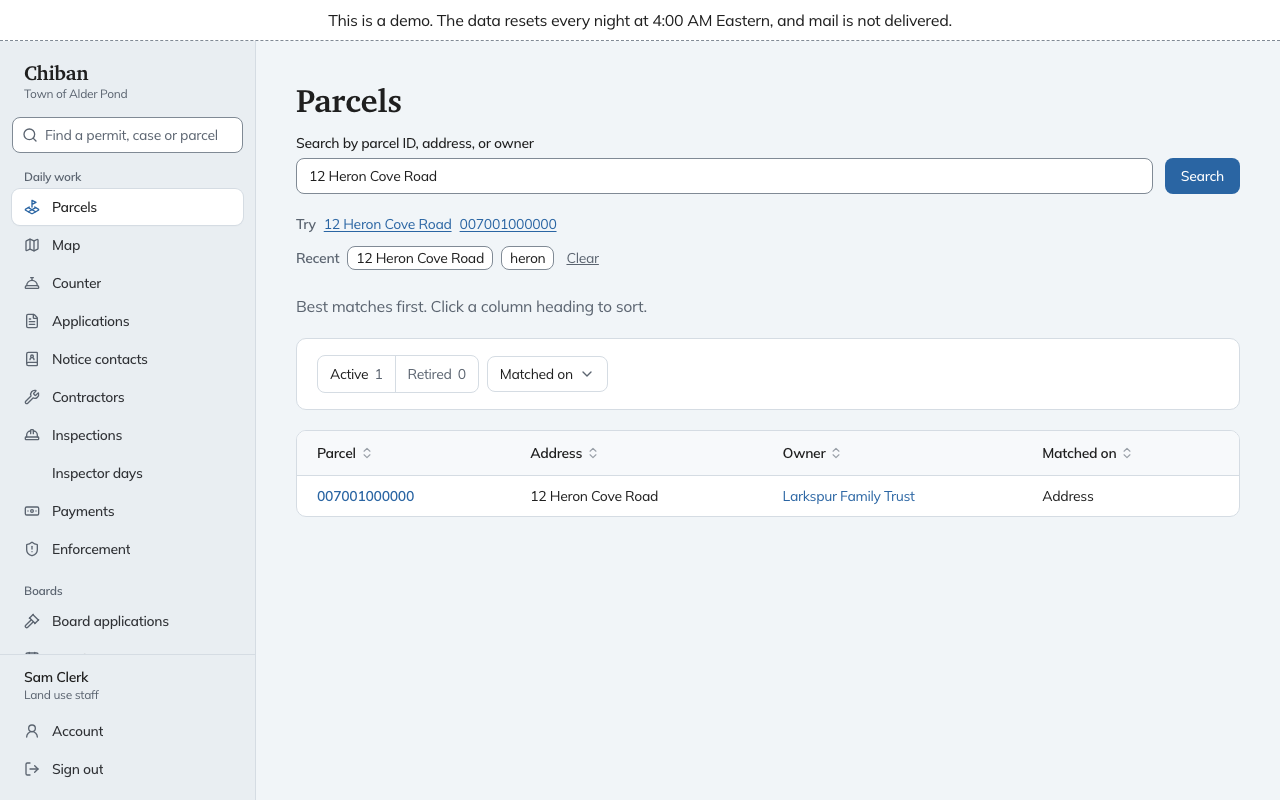
Open Parcels, or use Find a parcel on Today. Type an address, an owner's name or a parcel ID and choose Search. You can start with as few as two characters. Under the box, Try offers an example from your own town, and Recent keeps your last searches so you can repeat one.
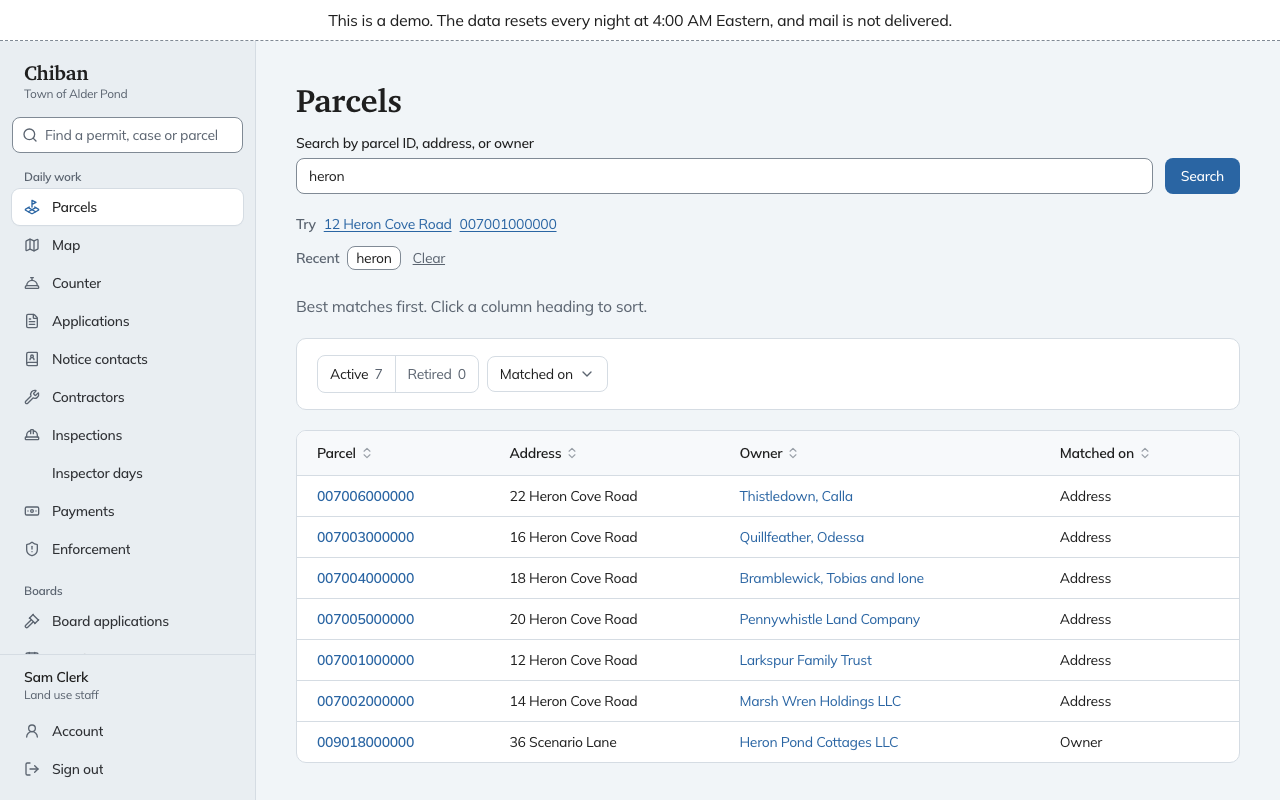
Results are ordered best match first, and the Matched on column says whether it was the address, the owner or the ID. Click a column heading to sort. Quick filters separate Active parcels from Retired ones and narrow by what matched. If there are more matches than fit, a notice says so, and a narrower search finds the rest. With no search typed, Parcels lets you browse the whole list.
The parcel page
Choose a parcel. The page opens with the address, the Map-lot ID and one sentence of what is open, for example that there are enforcement cases, permits in review and permits in force.
- Open on this lot lists every open permit, application and enforcement case, each with its status. Choose a number to open it.
- The side panel gives the Owner, Mailing address, Area and who Notices go to. A balance owed on a permit shows here as a notice. Open exceptions counts data problems with the parcel and links to them. Choose the owner's name to search for the owner's other parcels.
- Map and nearby parcels shows the lot and links the parcels around it.
- Conditions and decisions in force lists the conditions on permits and decisions that apply to the lot, so you can read them to a caller.
- Records is the full history on the lot, in a table of permits, cases and inspections with their dates and a count of files. Open and Closed separate them.
- Documents holds files attached to the parcel and shows which ones are on the public site. Add a parcel file attaches another. See what the public sees opens the public parcel page, so you can check what a resident will find.
- Notice goes to repeats who receives notice and links to All notice contacts.
- Lineage shows when a lot was split, merged or renumbered.
More actions in the side panel has Record lineage event for staff who manage parcels, to record a split or merger.
If the assessing file has not been refreshed lately, a banner on the page says so. The data comes from the imports an administrator runs. See Loading owners from the assessing file.
The map
Map shows the town's parcels. Select a parcel to open its page. The map also draws roads and water when your town has imported those layers. If no parcels have been imported yet, the page says so.
Anything you can do on the map you can also do with parcel search, and the page links to it.
Search from any page
The box at the top of the menu, Find a permit, case or parcel, searches across the office. Type at least two characters and results appear in groups as you type:
- Applications, matched on number, project title, site address or owner.
- Enforcement cases, matched on case number, location, site address or owner.
- Parcels, matched on ID, address or owner.
- Requests, the Right-to-Know requests, matched on number, requester or description.
Each group shows its first few matches, with the status on each. The groups you see depend on your role. For example, enforcement cases and requests appear only for roles that can open those pages.
If you type a whole record number, such as an application, case, order, complaint, request or receipt number, and press Enter, Chiban goes straight to that record. A receipt opens in a new tab. If you type an address that exactly matches a parcel's, the parcel group comes first. Use the arrow keys to move through the list, Enter to open a result and Escape to close it.
When an application number matches, See all application matches opens the Applications list on the All tab, filtered by what you typed.