The counter
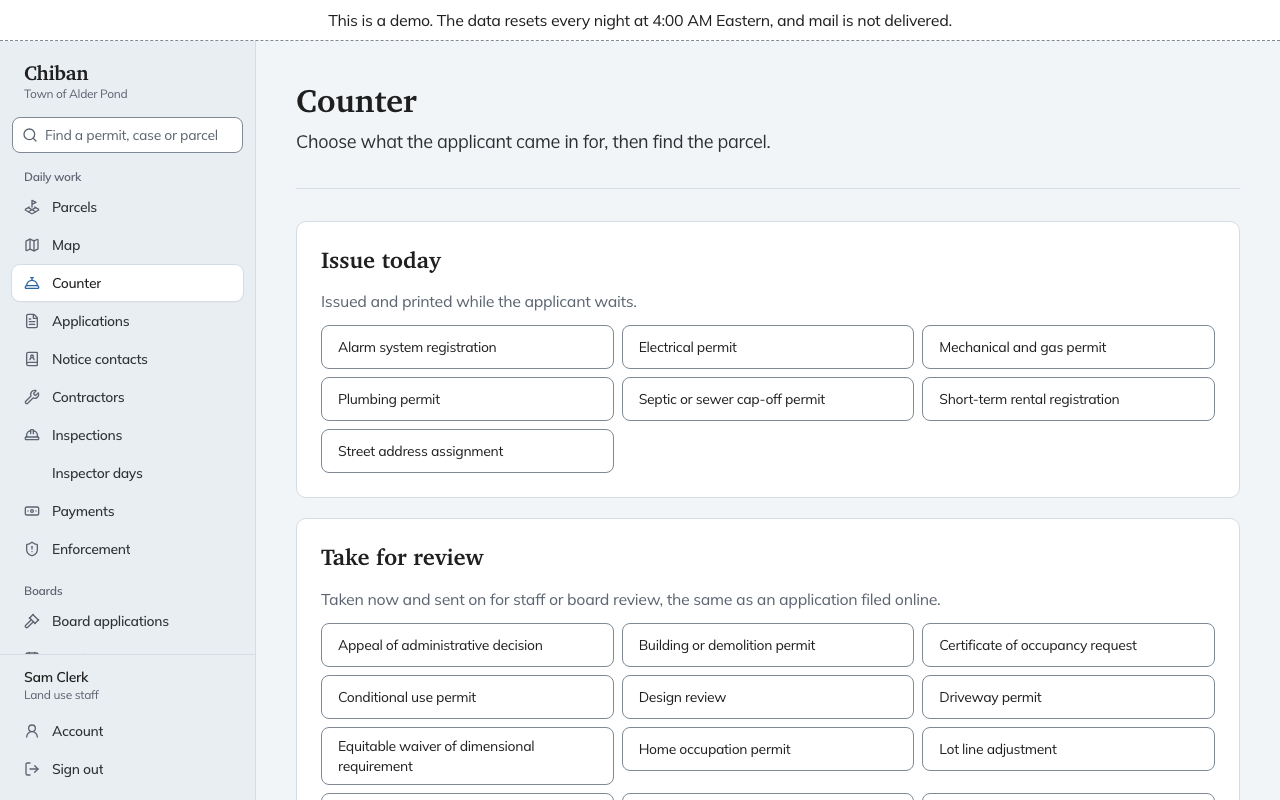
Use Counter when someone is standing in front of you. The first screen asks which of two jobs you are doing:
- Issue today is for permits that can be issued while the applicant waits, such as an electrical or plumbing permit. You fill in one form, take the money, and the permit prints.
- Take for review is for everything else. You take the application and the paper documents with the applicant, and it goes into the same review as an application filed online.
Your administrator decides which permit types appear under each heading. In the Alder Pond demo, Issue today lists seven types, including Electrical permit, Plumbing permit and Alarm system registration, and Take for review lists the rest, from Building or demolition permit to Variance.
You need to be able to issue permits and take payments to use the counter. In the standard roles that means land use staff. If you do not see Counter in your menu, you do not have both.
Issue a permit while the applicant waits
- Choose the permit type, for example Electrical permit.
- Find the parcel. Search by parcel ID, address or owner and choose the lot from the results.
- Fill in the form. The top of the page keeps your choices, with a Change link beside each.
- Take the payment and choose Issue and print.
The form has these parts. Questions in the work details differ by permit type, because each type has its own form.
- Contractor and license check appears for trade permits. Enter the Contractor name, the License number and the License type, then open the state's license search from the link on the page, look the license up, and record what it said under Result of the state lookup. Only Active lets the permit issue. See Contractors and license checks. A contractor's email is optional. For other permit types this section is Applicant, with a name and an optional email.
- Work details holds the questions for the permit, such as Description of work.
- Fee shows the amount worked out from your answers. If the applicant pays by card and your town charges a card fee, the fee and the new total appear here as soon as you choose Card.
- Payment takes a Payer name (it defaults to the contractor) and a Method: Cash, Check or Card. For cash, enter Cash tendered (dollars). For a check, enter the Check number.
When the permit is issued, the page says the number is issued and lists the type, parcel, contractor and what was paid. The permit, the placard and the receipt open in new tabs so you can print them. That page also has:
- Send claim link to contractor emails the contractor a link to their own permit online.
- Issue another permit starts again.
- Open the application record opens the permit's record.
When the permit is not issued
The form tells you why, and a few of the reasons come up often:
- The license is not active. The page says not to issue at the counter. Chiban will not issue a trade permit until a license check finds the license active, and the counter has no other route for these types.
- The cash tendered is less than the amount due. Correct the amount.
- Enter the check number. A check needs its number.
- The permit needs documents before it can be issued. Chiban takes the application for review instead, keeps the answers you entered, and opens the documents step. Add or accept each document, submit it, and issue the permit from its record.
- Card payments are not configured. The Card choice is disabled until your administrator connects a processor.
Paying by card
Choosing Card and Issue and print starts a payment on the card reader and shows Present card on reader. Wait for the outcome before doing anything else.
- If the card is approved, the permit issues and prints.
- If it is declined, the permit is not issued. Try the card again or choose another method.
- If the outcome is unknown, for example because the reader lost its connection, the page says Outcome unknown. Do not issue. Use Check with processor until it reports an answer.
In the demo the reader is simulated. The page says so, shows Approve, Decline and Lose connection buttons, and no card is charged.
Take an application for review
- Choose the application type, for example Building or demolition permit.
- Find the parcel.
- Find the applicant. Enter their email and choose Find account. If they have an account, choose Take the application for their name, and the application will show in their portal and their notices will go to them. If not, Chiban asks for the Applicant name and records them on the application. If they have no email address at all, open The applicant has no email address and enter a name.
Chiban then walks through the steps in the bar at the top of the page:
- Application form: fill in the application with the applicant. Staff-only questions are shown too. Choose Save and continue, or Save and finish later.
- Documents: scan or upload what the applicant brought. If the permit type has a checklist of required documents, it appears here so you can match each file to its item, ask for a waiver or accept the item without the document.
- Attestation and submit: the applicant signs the attestation on the paper form. Tick The applicant signed the attestation on paper and choose Submit the application.
- Fee: shown only when the permit type is paid at intake. The page states the amount due now. Record it as described in Fees, waivers and payments, or choose Finish without taking payment. The applicant pays later.
- Done: the application is in the review queue. The page says whether notices will go to the applicant's portal, to an email address with a claim link, or, if there is no email, by mail only. Send claim link to the applicant appears when it applies.
An application you have started and not submitted stays in Unfinished at the counter, at the top of the counter page. Open one to carry on, or choose Discard to withdraw it. Files already scanned stay on its record.
From here the application follows From intake to issued permit.