Adopting starters and taking updates
A starter is a ready-made application type. Adopting one copies a complete permit into the town's settings: its form, fee schedule, conditions, inspection checklists, the letters and permit it prints, and the deadlines state law attaches to it. Most towns begin here instead of building from nothing. The New Hampshire starter catalog lists what each starter contains.
Adopt a starter
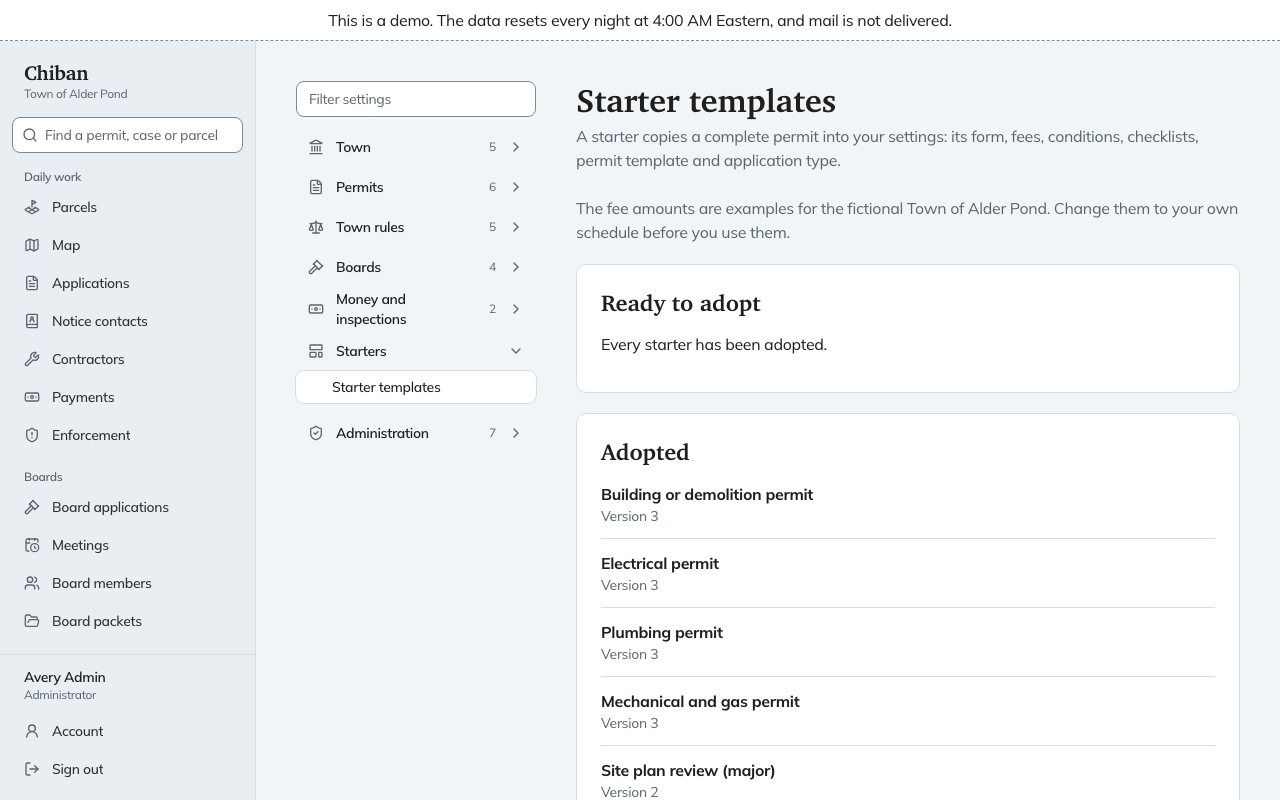
- Open Settings, then Starter templates.
- Under Ready to adopt, find the starter and choose Adopt this starter.
- Open Settings, Fee schedules and replace the example amounts with the town's own. The fees in a starter are examples written for the fictional Town of Alder Pond.
- Read the form under Forms and the letters under Templates, and change what does not match the office.
Adopting puts the new application type into use at once, so residents can see it right away. Do steps 3 and 4 before you tell anyone it is there. In the demo every starter has already been adopted, so Ready to adopt reads "Every starter has been adopted."
Taking an update
A later release of Chiban can improve a starter the town has already adopted. At the foot of Starter templates, choose Check adopted starters for updates. The Starter updates page lists each adopted starter with a newer version. Under it, each change shows two lines: Your town and Upstream.
Tick the changes you want and choose Apply selected. Everything you leave unticked stays as the town has it. Applying puts a new version into use right away, and version history records it as coming from the starter. If you ticked nothing, Chiban says to select at least one change. When nothing is newer, the page says "Every adopted starter is up to date."
Who can do this
Adopting and updating need the permission to edit configuration, which administrators have.