Forms, fee schedules and letters
These pages are in the Permits group under Settings. Each starter you adopt brings a form, a fee schedule, a set of conditions, inspection checklists and letters. Adjust them one at a time, preview each, then put it into use. Each is a versioned item. See how changes are saved and put into use.
Forms
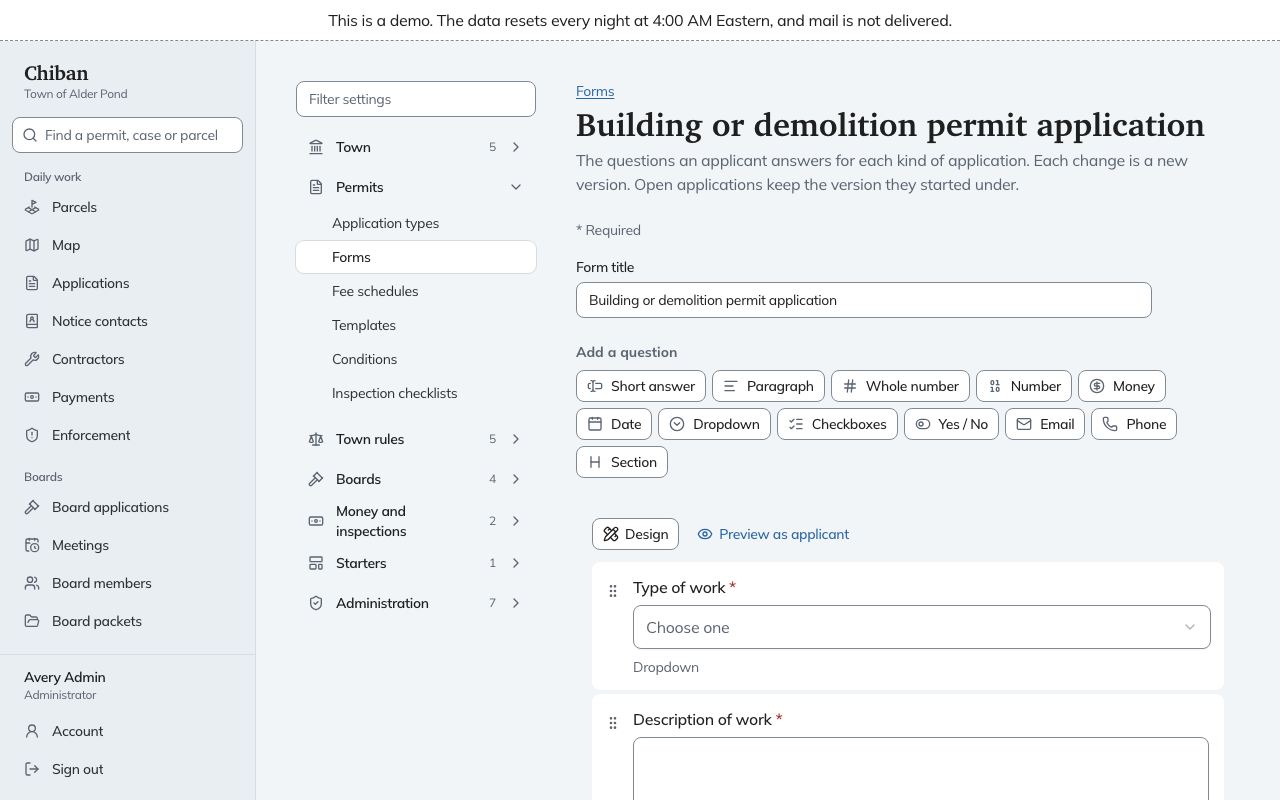
Open Settings, Forms, and choose a form. Each form is the set of questions an applicant answers for one kind of application.
Add a question with one of the buttons under Add a question: Short answer, Paragraph, Whole number, Number, Money, Date, Dropdown, Checkboxes, Yes / No, Email, Phone or Section. Drag a question by its handle, or use Move up and Move down, to reorder. Select a question to open Question settings:
- Question text and Help text.
- Answer type.
- Required, and for numbers a Smallest allowed and Largest allowed.
- Show only when: show this question only when an earlier answer is, is not, or is any of the values you choose.
- Required only when: the same kind of rule for a question that is required in some cases.
- Advanced: the question's short key, a Staff only box, and a Used by list showing what relies on the question, such as a fee schedule, a required document or another question's rules. It warns that changing the key stops them from finding the answer.
- Move up, Move down and Remove question.
Choose Preview as applicant above the questions to see the form as the applicant will.
Fee schedules and report columns count answers from the form. Check Used by under Advanced before you remove a question or change its key.
Fee schedules
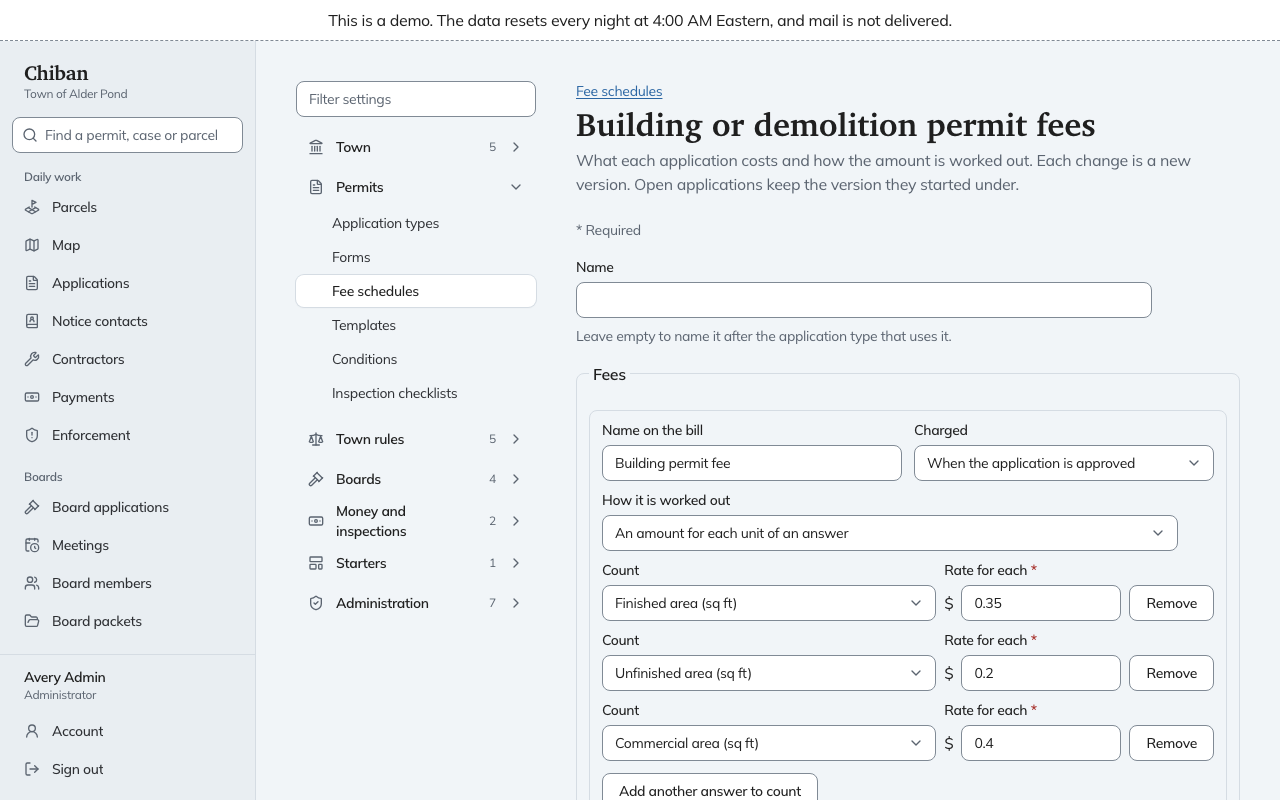
Open Settings, Fee schedules, and choose a schedule. The page lists each fee on the bill.
For each fee you set:
- Name on the bill.
- Charged: when the application is submitted, when it is approved, when the permit is renewed, or when the abutter notice list is issued. A fee charged with the notice list is worked out when the list is issued, because that is when the number of abutters is known.
- How it is worked out: a set amount, an amount for each unit of an answer, or rates that change in bands.
- For an amount per unit, Count which answers, such as finished area or estimated cost of work, with a Rate for each. You can count the abutters on the notice list or the dwelling units too.
- Charge at least a minimum amount, with a Minimum.
- Charge more when work started before the permit was issued, with a number to multiply the fee by. A 2 doubles it. The applicant says on the form whether work has started.
The Worked example under each fee shows what it comes to. Change the sample answers beside it and the total changes, so you can try a small job and a large one. Add a fee adds a line and Remove this fee takes one off. The schedule is tied to an application type under application types and workflow.
Waiving or changing the fee on one application is not done here. See overrides.
Letters and permits
Open Settings, Templates. There are templates for permits, hearing notices, notices of decision, decision letters and plain letters. Each has a Title of the document and a Kind of document. The kind cannot change once a version has been put into use. Kinds include Permit, Placard, Letter, Hearing notice, Notice of decision, Decision letter, Meeting agenda, Cease and desist order, Right-to-Know response, Receipt and Certificate of occupancy.
Write the letter as text. Under Insert, add Merge fields (the application's number, the applicant's name, the parcel address, the signer's name and title) and Blocks: Signature, Conditions list, Field table and Notice box. Select a field or block to change it under Selected part.
Preview with lets you pick an existing application, for example an issued permit, and shows the letter as it would print with the town's letterhead. Download PDF makes a copy. Start again from the standard wording goes back to what the starter shipped.
Conditions and inspection checklists
Conditions are the standard conditions staff can attach to an approval, one set per application type. Inspection checklists are the items an inspector checks at each kind of inspection, such as Footing inspection or Final inspection. Both are edited like the pages above, and an application type picks which checklists it uses.